User Settings
User Settings is your personal preferences page. Here you can check your name and email, add a mobile number for text notifications, choose the language and units you see, pick the screen you land on after login, and change your password.
Who uses this: any Fleet Guardian user, for their own account.
Where to find it
Open your account menu (your name or avatar at the edge of the screen) and select Settings. This page always shows your own settings, so there is nothing to search or select first.
What you can change
The page is split into a few groups. Make your changes, then select Save Changes to keep them. The Save button stays greyed out until you have changed something.
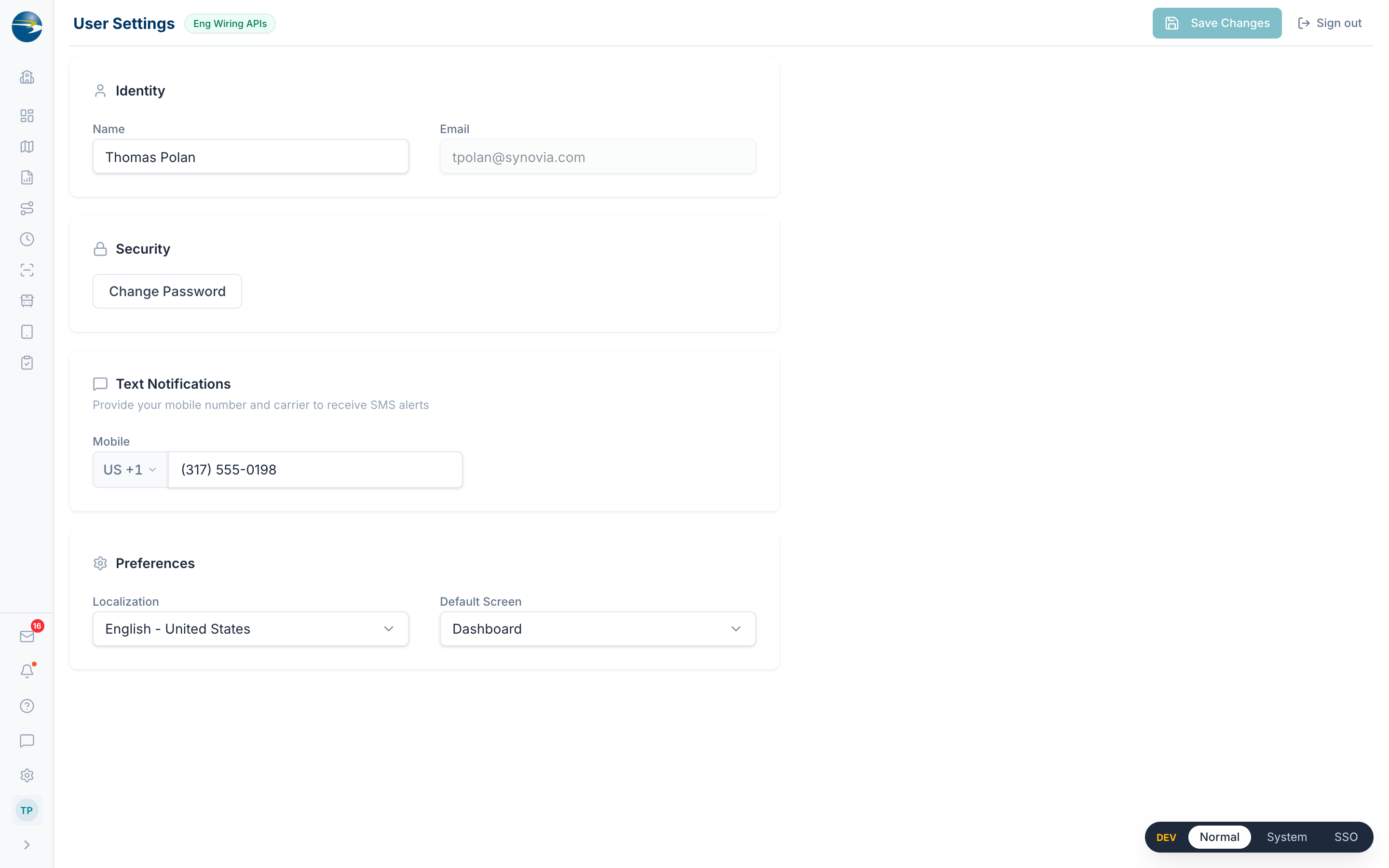 The User Settings screen.
Your identity
- Email is shown for reference and cannot be changed here.
- Name can be edited so your profile stays current.
Note
If you sign in through your organization's login (single sign-on), your name is managed by your organization and shown as read-only.
Text notifications
Enter your Mobile number to receive text notifications. Pick your country from the selector next to the field (it shows the country flag and dial code, for example "US +1"), and the number formats itself as you type. The United States and Canada are pinned to the top of the country list, with the rest in alphabetical order.
Preferences
- Localization sets your language and units. Choose English (US), English (Canada), or French (Canada). This controls whether you see miles or kilometers and Fahrenheit or Celsius, and it applies across the whole app.
- Default Screen is the page you land on right after you log in. The list shows only the screens available to you, with None at the top. Leave it on None to keep the standard landing behavior.
Note
If a screen you had chosen as your default is no longer available to you, it resets to None on its own and prompts you to save.
Security
Select Change Password to open a short form with your current password, a new password, and a confirmation. Changing your password happens on its own and does not depend on the Save Changes button.
Your new password must:
- be at least 8 characters long,
- include at least one letter and one number, and
- include at least one symbol from
@ + & * # $ % ! ? '.
It also has to be different from your current password and match the confirmation field.
Note
If you sign in through your organization's login, password changes are handled there, so this button is turned off and a short note explains why.
Good to know
- Name is required and cannot be left blank.
- A language change takes effect across the whole app once you save, so labels and units update everywhere.
- Changing your password is separate from Save Changes, so do each step on its own.