Canned Messages
Canned messages are short, ready-to-send message templates that dispatchers can pick when sending a message to a vehicle tablet. Setting them up ahead of time means dispatchers can send common notes in a couple of taps instead of typing them out.
Who uses this: office staff and dispatchers.
Where to find it
Go to Settings → Canned Messages in the sidebar.
What you'll see
A list of your canned messages, showing each one's order, its message text, whether it's turned on, and who last changed it and when. They're shown in the order dispatchers will see them.
- Use the search box to find a message by its text.
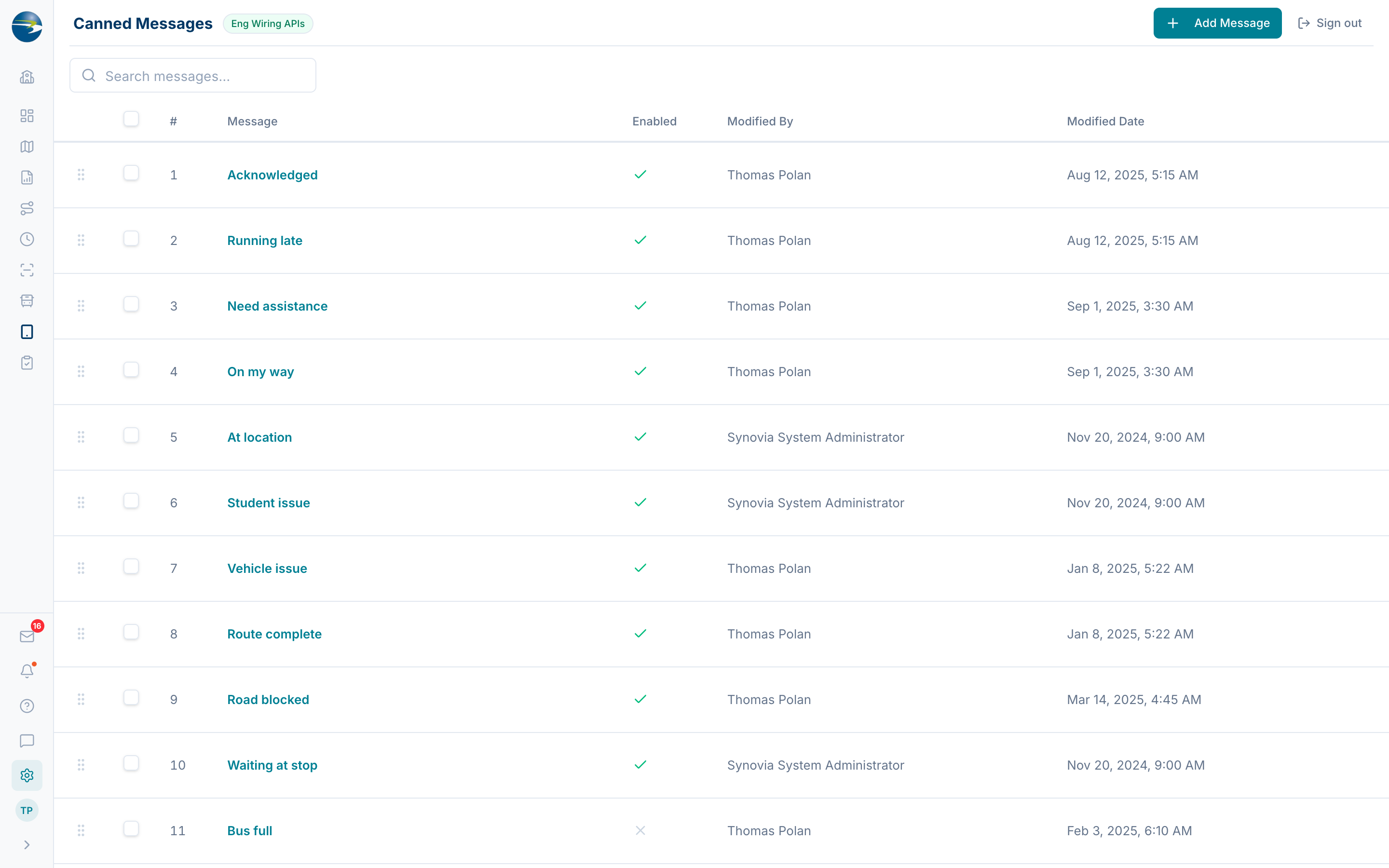 The Canned Messages list.
Add a canned message
- Select Add Message (top right).
- Enter the Message Text. Keep it short (up to 25 characters), and a live counter shows how many you have left.
- Leave Enabled checked so the message is available to dispatchers, or uncheck it to keep it hidden for now.
- Select Save.
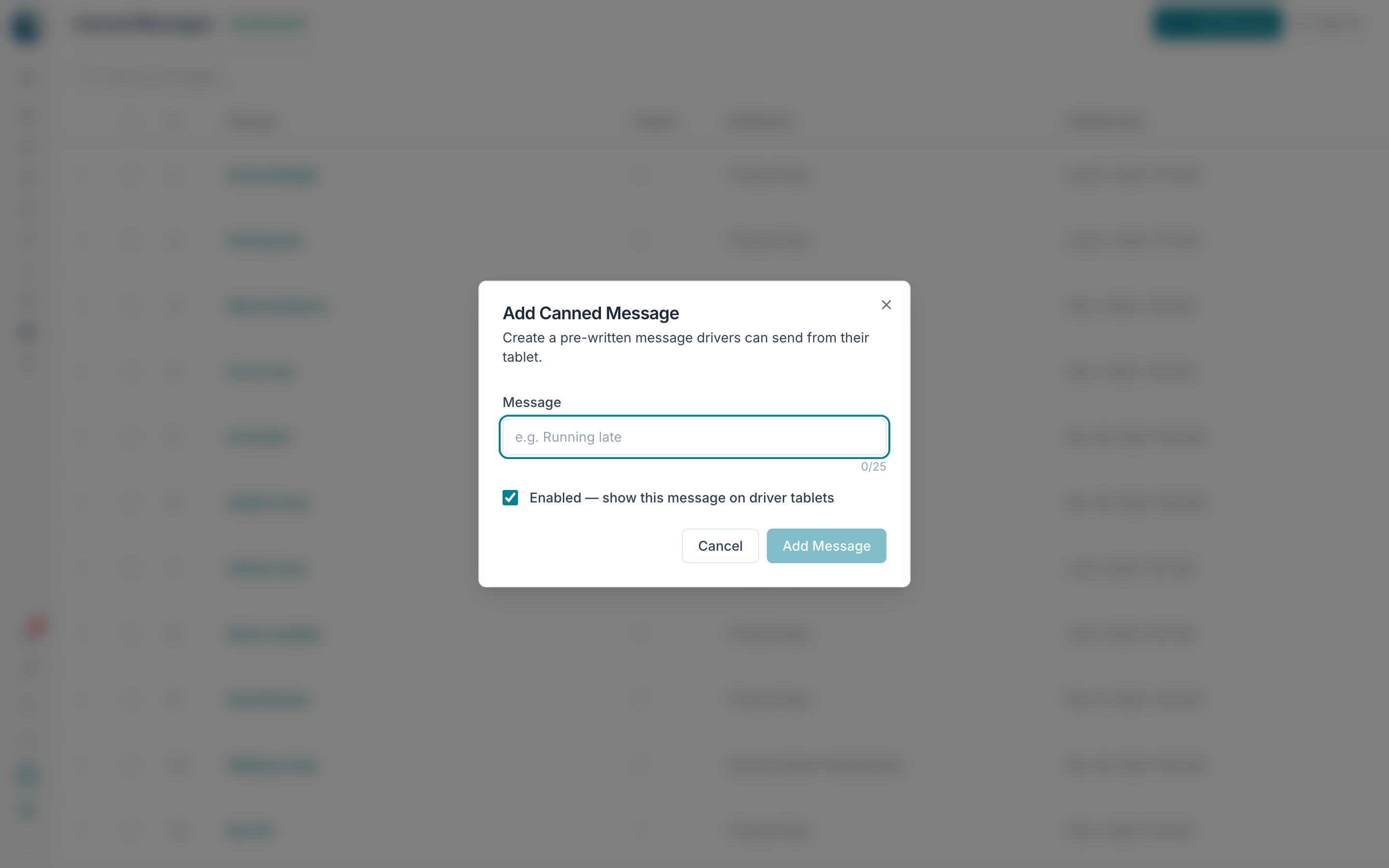 Adding a canned message.
Edit a canned message
Click the message text, or use the row's ⋯ → Edit. Update the text or the enabled setting, then Save.
Reorder canned messages
Drag a row up or down to change the order. The order you set here is the order dispatchers see when they pick a message to send.
Turn a canned message on or off
Open the message and use the Enabled checkbox. When a message is disabled it stays in this list but won't appear as an option when dispatchers compose a message to a vehicle.
Delete a canned message
Use the row's ⋯ → Delete, or select several with the checkboxes and delete them together. You'll be asked to confirm first.
Heads up
Deleting is safe: messages are hidden, not permanently erased.
Good to know
- Message text is required and can be up to 25 characters.
- Each message must be unique. You can't have two canned messages with the same text.
- Disabling a message hides it from dispatchers but keeps it here; deleting removes it from the list.
- If you don't have edit access, you'll see the list in view-only mode (no Add, Edit, Delete, or reordering).