Job Types
Job types describe the kinds of work your employees clock in to, a bus route, a field trip, training, and so on. Each job type has a color, a short code, and a few options that control how it behaves on the driver tablet and in shift selection.
Who uses this: office staff and Time & Attendance administrators.
Where to find it
Go to Settings → Job Types in the sidebar.
What you'll see
A list of your job types, showing each one's name, code, color, the employee types it applies to, its settings, and whether it's turned on.
- Use the search box to find a job type by name or code.
- Use the Employee type filter to see only the job types assigned to a particular employee type.
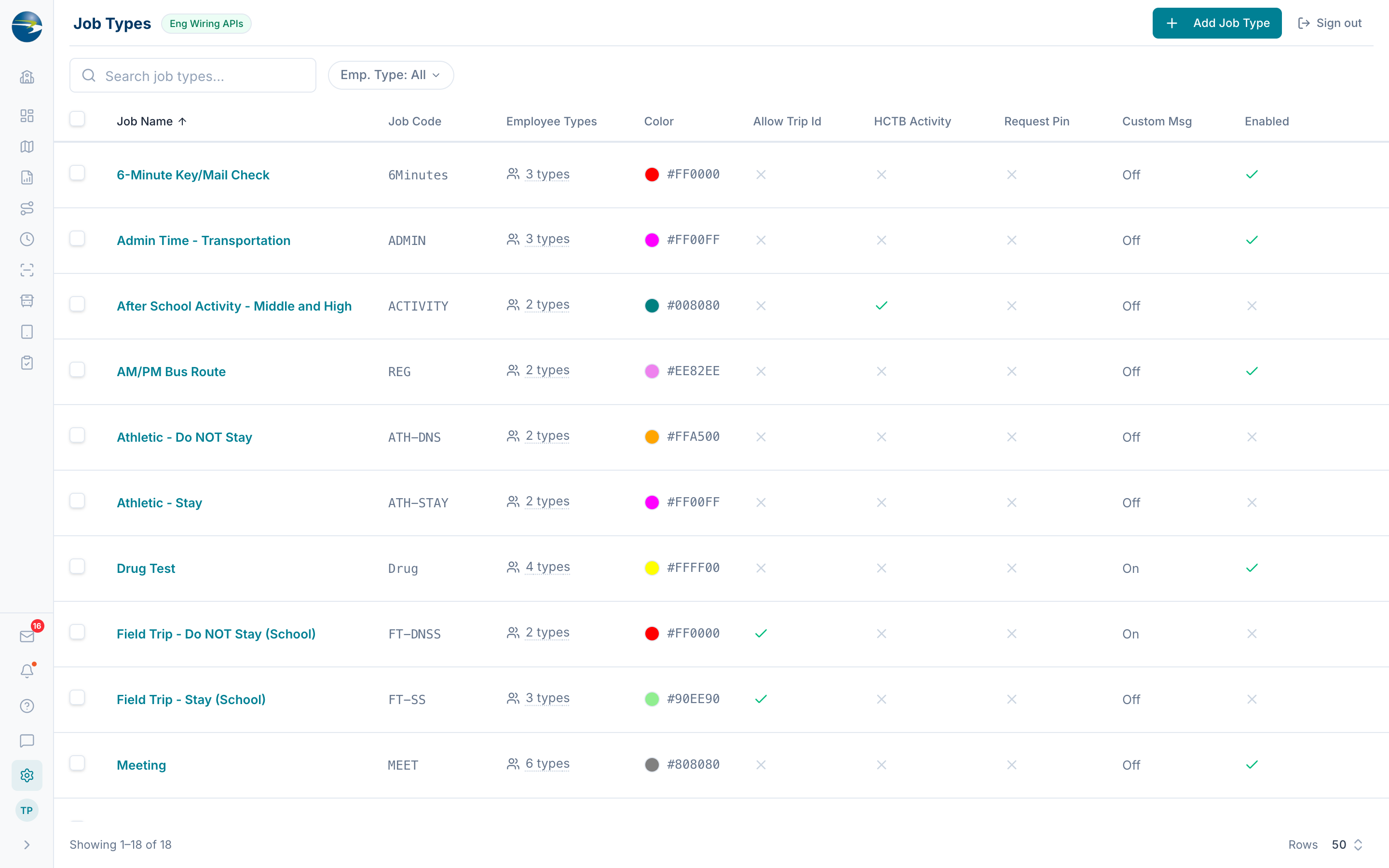 The Job Types list, with search and the employee-type filter.
Add a job type
- Select Add Job Type (top right).
- Enter a Name and a Job Code.
- Pick a Color, choose a preset swatch or enter your own hex value. The color helps staff spot the job type at a glance.
- Turn on any Settings you need:
- Allow Trip ID lets employees attach a trip ID to the shift.
- HCTB Activity ties the job type to a Here Comes the Bus activity (shown only if your district has that feature).
- Request Pin asks the driver for a pin at clock-in.
- (Optional) Turn on Custom Message to show the driver a note when they clock in to this job type, then type the message.
- Under Valid Employee Types, check the employee types allowed to use this job type (or use Select All).
- Select Save.
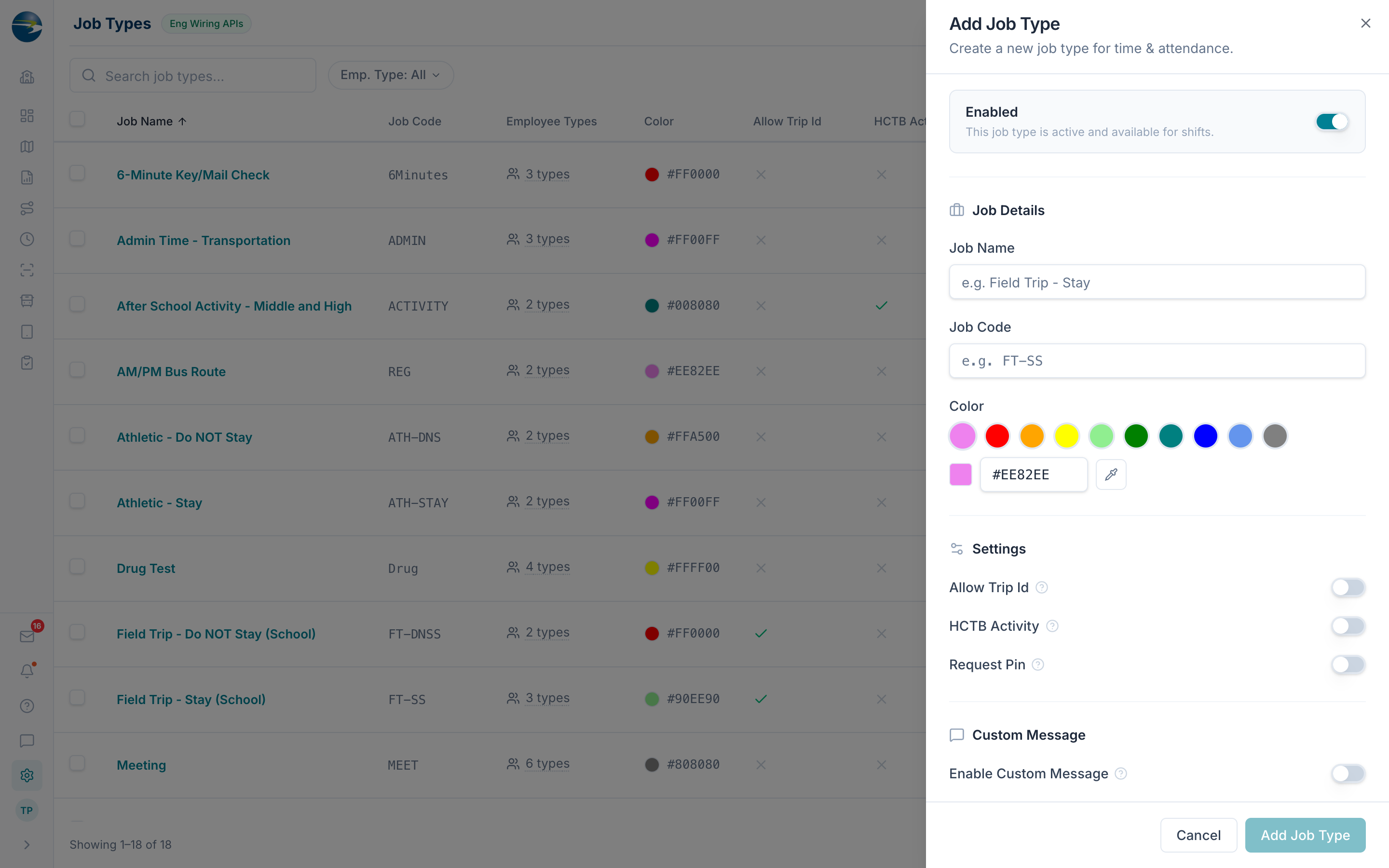 The Add Job Type panel, with details, color, settings, and a custom message.
Edit a job type
Click the job type's name, or use the row's ⋯ → Edit. Make your changes and Save.
Note
If a job type has active shifts, its name is locked, you can still change its color, settings, message, and employee types.
Turn a job type on or off
Open the job type and use the Enabled toggle at the top. When a job type is disabled it won't appear on tablets or in shift selection, but past shifts that used it are preserved.
Delete a job type
Use the row's ⋯ → Delete, or select several with the checkboxes and delete them together.
Heads up
You can't delete a job type that still has active shifts. Reassign or remove those shifts first.
Good to know
- Name and code are required.
- If you turn on a custom message, the message text can't be empty.
- Deleting is safe: records are hidden, not permanently erased.
- If you don't have edit access, you'll see the list in view-only mode (no Add, Edit, or Delete).