Holidays
Holidays are the non-operational days your district recognizes, such as Thanksgiving or winter break. Setting them up keeps those days out of scheduling and payroll for the employee types you choose.
Who uses this: office staff and Time & Attendance administrators.
Where to find it
Go to Settings → Holidays in the sidebar.
What you'll see
A list of your holidays, showing each one's name, code, start and end dates, how many days it spans, the employee types it applies to, and who last changed it.
- Use the date range filter to focus on a specific time period. A Reset link appears once you change the range.
- Use the Employee type filter to see only the holidays that apply to a particular type, such as drivers.
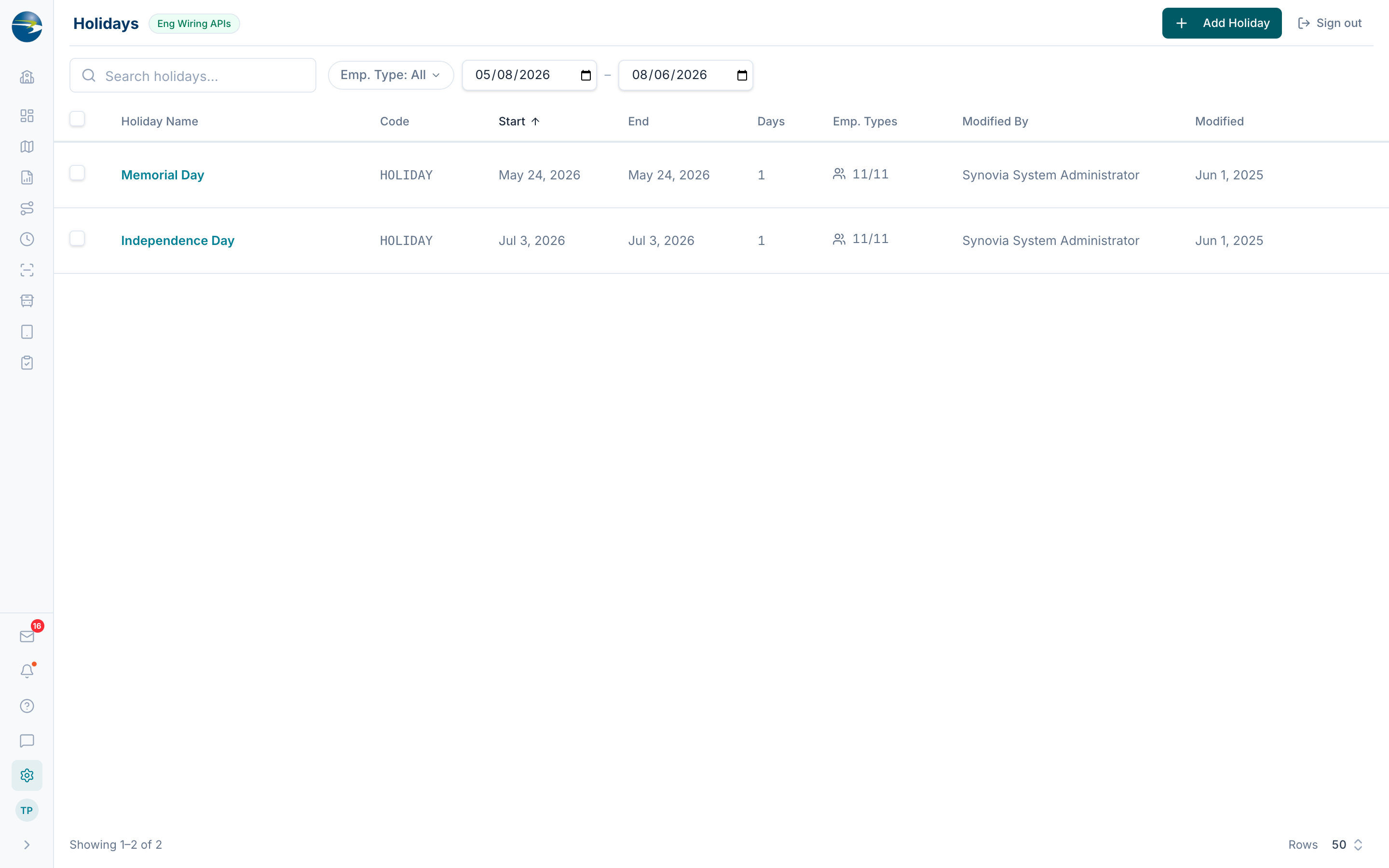 The Holidays list.
Add a holiday
- Select Add Holiday (top right).
- Enter a Name. A Code is optional.
- Pick a Start Date and an End Date.
- Under Employee Type Assignments, check the employee types this holiday applies to (or use Select All).
- For each selected type, check Paid if the day is paid for that type. Use Select All Paid to mark every selected type as paid at once.
- Select Save.
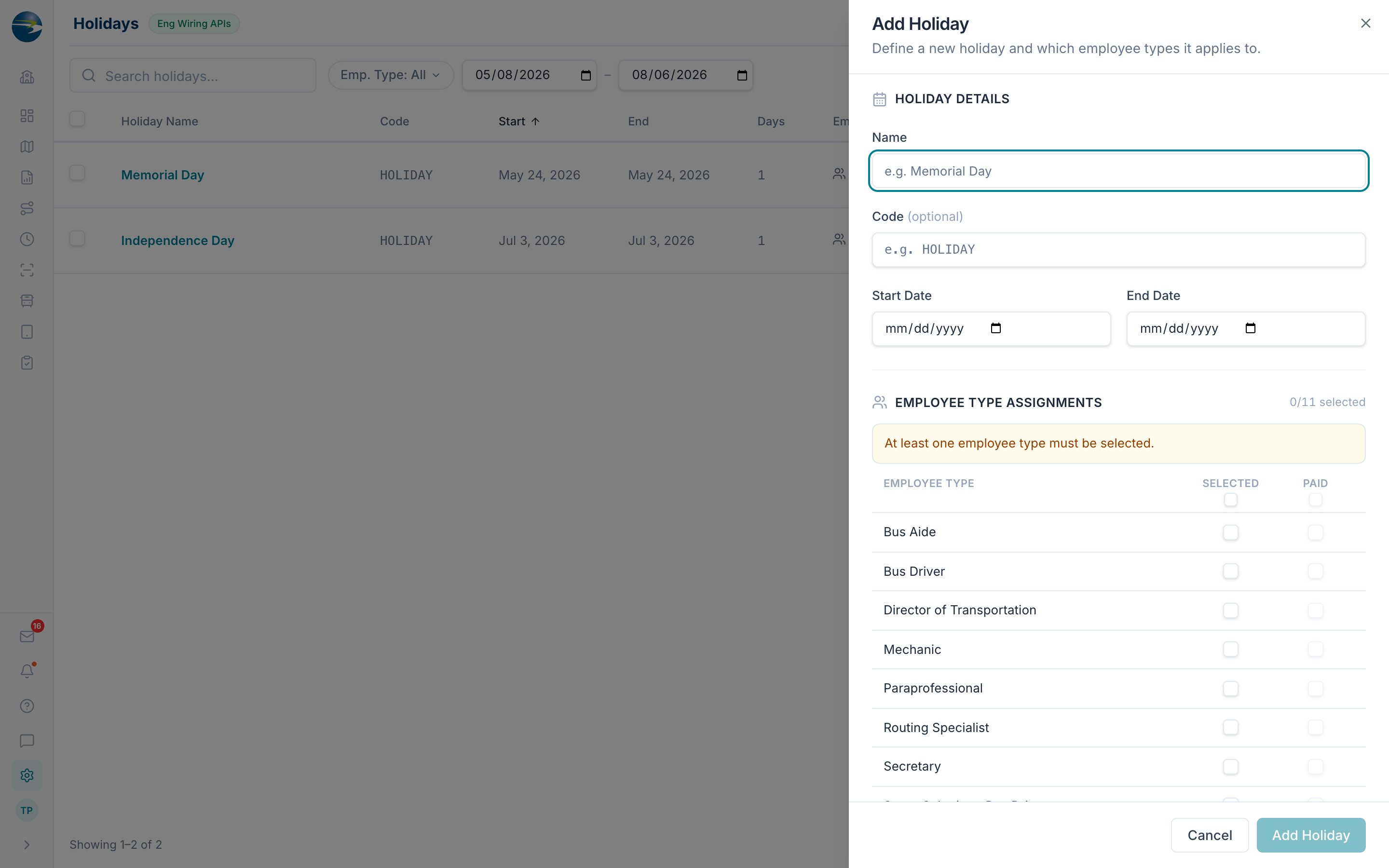 Adding a holiday.
Note
A holiday can span up to 30 days. If you change the start date to a day after the end date, the end date moves to match it.
Heads up
You can't have two holidays that overlap for the same employee type on the same dates. If they conflict, a banner names the holidays and shared types involved, and Save stays blocked until you fix it.
Edit a holiday
Click the holiday's name, or use the row's ⋯ → Edit. Make your changes and Save.
Delete a holiday
Use the row's ⋯ → Delete, or select several with the checkboxes and delete them together. You'll be asked to confirm first.
Good to know
- A name, both dates, and at least one employee type are required.
- Unchecking an employee type also clears its Paid setting.
- A single-day holiday counts as 1 day.
- Deleting is safe: records are hidden, not permanently erased.
- If you don't have edit access, you'll see the list in view-only mode (no Add, Edit, or Delete).