Attendance Event Types
Attendance event types are point-based categories for tracking attendance, for example a late arrival or an early departure. Each type has a point value, a short code, and a flag for whether it counts toward an absence.
Who uses this: office staff and Time & Attendance administrators.
Where to find it
Go to Settings → Attendance Event Types in the sidebar.
What you'll see
A list of your event types showing each one's name, code, point value, whether it applies to an absence, and whether it's enabled.
- Search by name or code.
- Use the Enabled filter to focus the list.
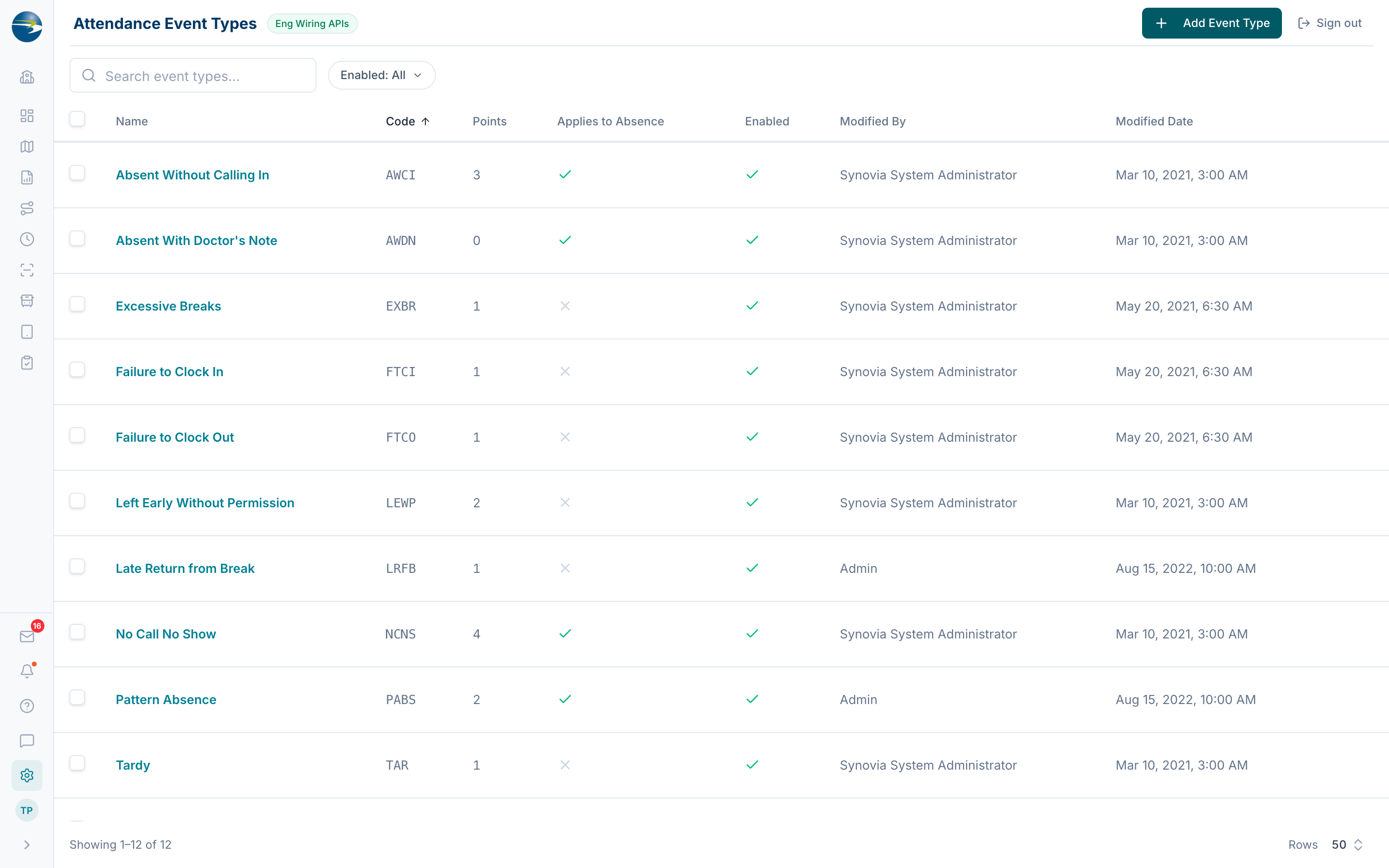 The Attendance Event Types list, showing point values and status.
Add an event type
- Select Add Event Type.
- Enter a Name and a Code (the code is capitalized automatically as you type).
- Set the Points value (new types start at 1).
- Check Applies to Absence if this event should feed absence workflows.
- Leave Enabled checked to make it available.
- Select Save.
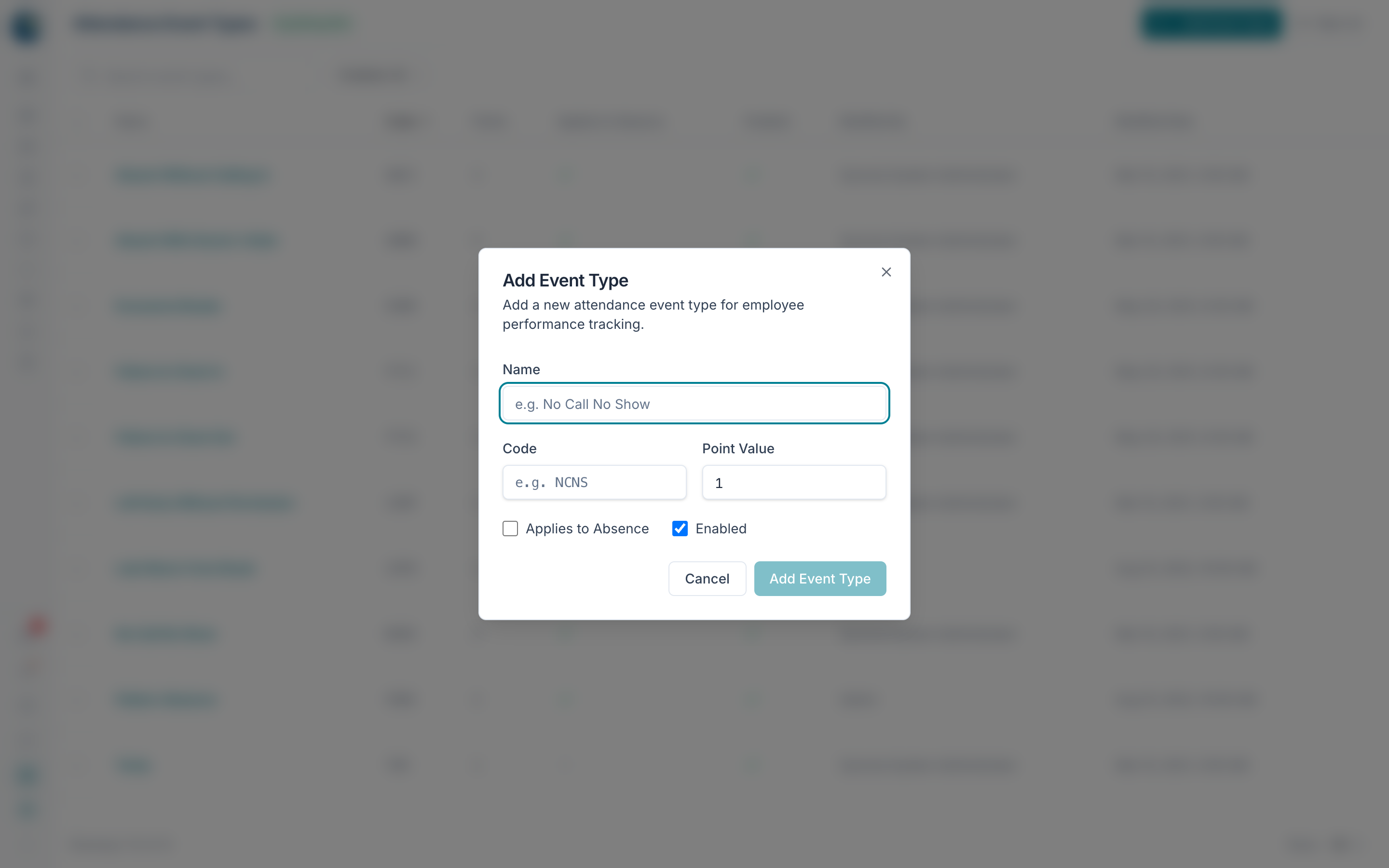 The Add Event Type dialog.
Edit an event type
Click the name or use ⋯ → Edit, make your changes, and Save.
Delete an event type
Use ⋯ → Delete, or select several and delete them together.
Heads up
You can't delete an event type that's already used on an attendance record.
Good to know
- Name and code are required and must each be unique.
- Points is a whole number and can be as large as you need.
- Disabling hides the type from selection while keeping its history; deleting removes it from the picker.
- Without edit access, you'll see the list in view-only mode.