Absence Types
Absence types are the leave categories that appear on employee timecards, things like sick, vacation, or jury duty. Each one has a short code, a paid or unpaid classification, and an on/off status.
Who uses this: office staff and Time & Attendance administrators.
Where to find it
Go to Settings → Absence Types in the sidebar.
What you'll see
A list of your absence types with each one's name, code, a Paid / Unpaid badge, and whether it's enabled.
- Search by name or code.
- Use the Paid and Enabled filters to narrow the list.
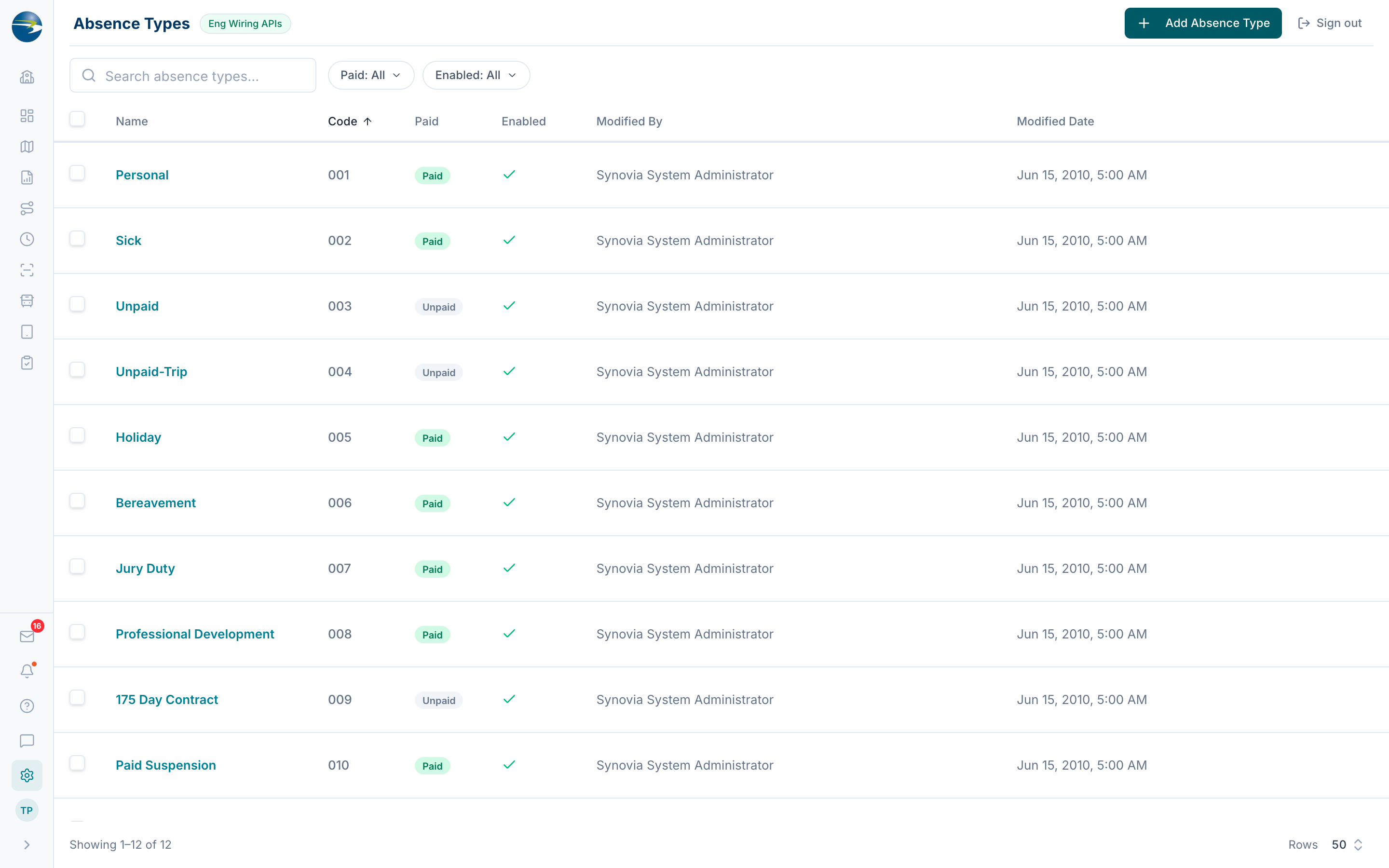 The Absence Types list, with paid/unpaid badges and filters.
Add an absence type
- Select Add Absence Type.
- Enter a Name and a Code.
- Check Paid if hours logged under this type should count as paid time in payroll exports.
- Leave Enabled checked so it's available on timecards.
- Select Save.
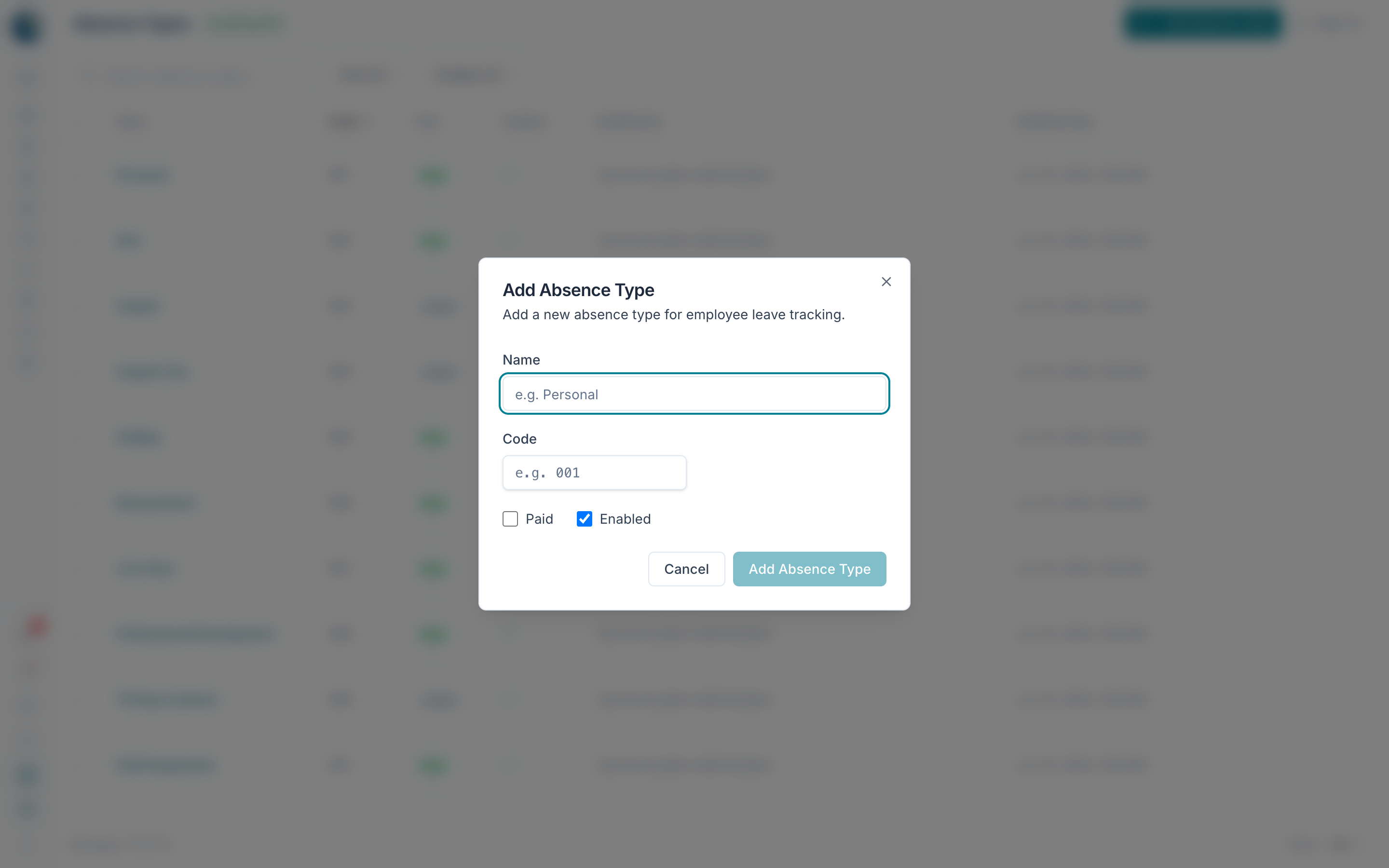 The Add Absence Type dialog.
Edit an absence type
Click the name or use ⋯ → Edit, make your changes, and Save.
Turn an absence type on or off
Open it and toggle Enabled. Disabling hides it from timecard dropdowns while keeping any past records that used it.
Delete an absence type
Use ⋯ → Delete, or select several and delete them together.
Heads up
You can't delete an absence type that's already used on a timecard. Disable it instead if you no longer want it offered.
Good to know
- Name and code are required, and the name + code combination must be unique.
- Paid controls whether the time counts toward paid time in payroll.
- Disabling is reversible; deleting removes it from the picker for good.