Employee Types
An employee type is a category of staff, such as drivers, monitors, or mechanics. The type controls whether those employees can sign in to the portal, whether they show up on the tablet, and which job types they're allowed to clock in to.
Who uses this: Time & Attendance administrators.
Where to find it
Go to Settings → Employee Configuration → Employee Types in the sidebar.
What you'll see
A list of your employee types, showing how many employees are in each, how many job types it allows, whether it grants portal and tablet access, its FTE value, and who last changed it.
Hover the job types count to see which ones are assigned.
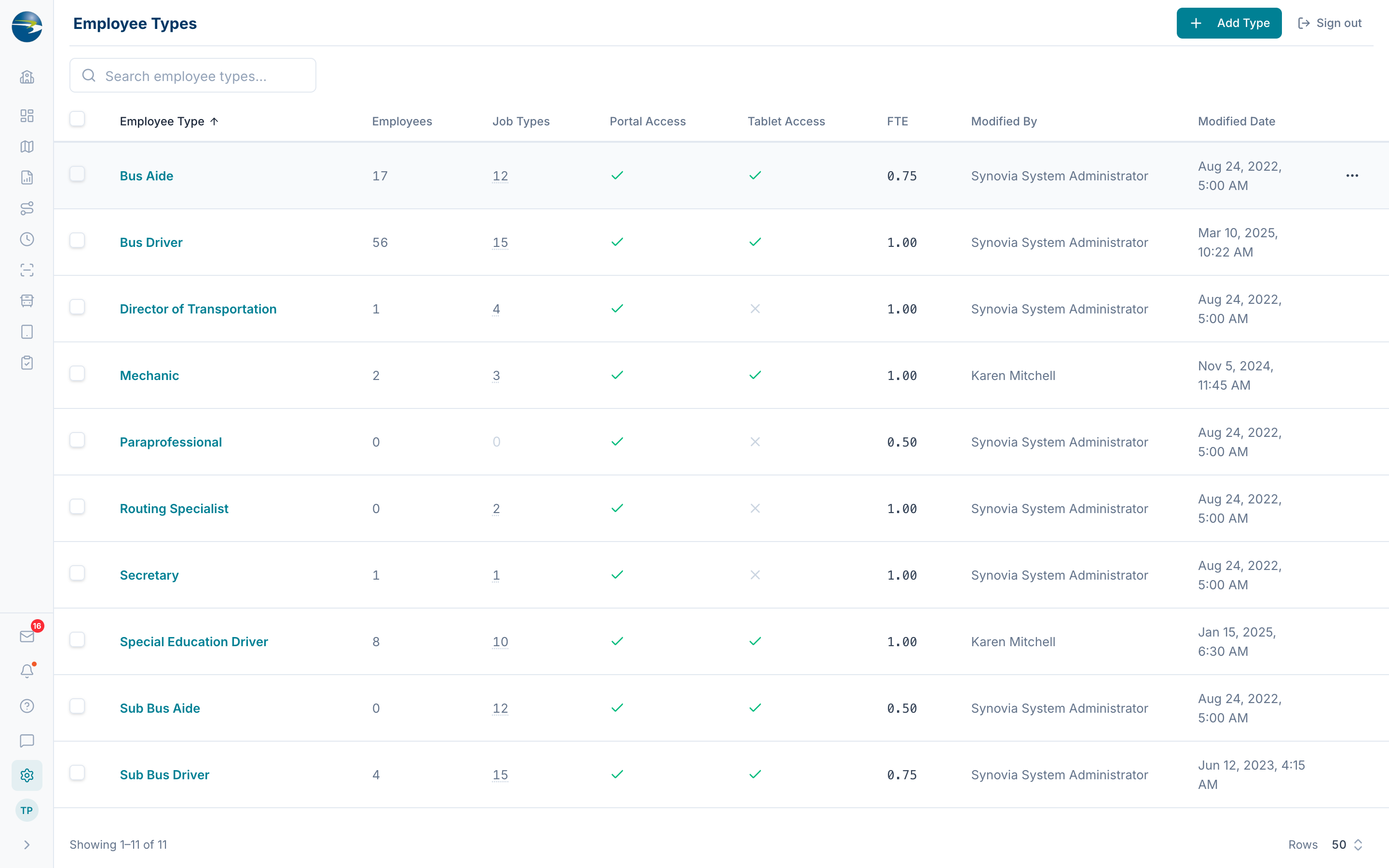 The Employee Types list.
Add an employee type
- Select Add Type (top right).
- Enter a Name.
- Tick Portal Access if employees of this type should be able to sign in to Fleet Guardian.
- Tick Tablet Access if they should appear on the tablet for drivers to select.
- Select Save.
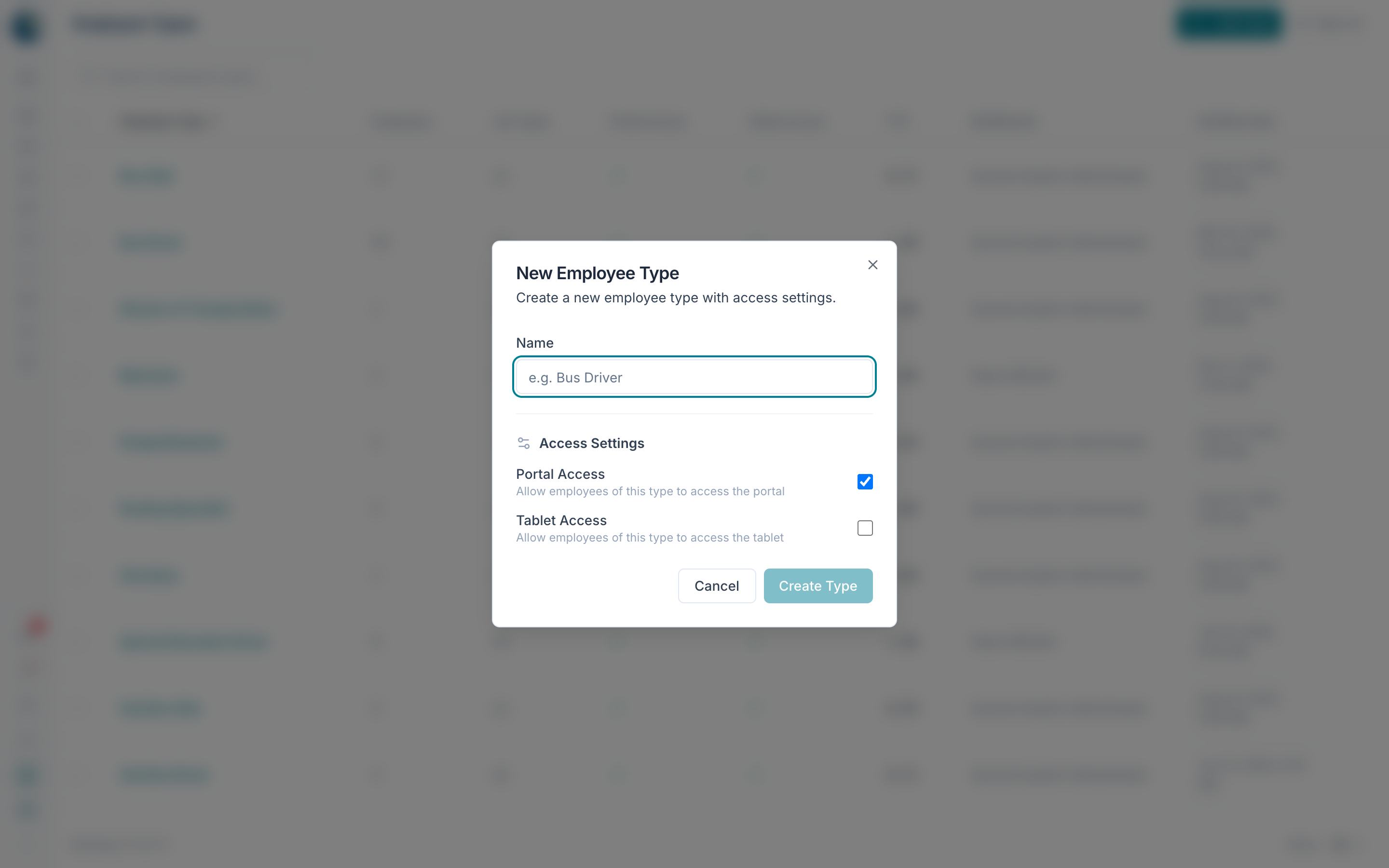 Adding an employee type.
Note
Names must be unique. Tablet Access only appears if your district is licensed for tablets.
Assign employees to a type
Use the row's ⋯ → Assign Employees to open the assignment panel.
- Use the view selector to show Members, Non-Members, or All.
- Search by name, or filter by another employee type to find people currently assigned elsewhere.
- Set a start date, and an end date if the assignment is temporary.
- Select Assign on the row, or tick several people and assign them together.
An end date of Ongoing means no end date. Clearing the date returns it to Ongoing.
Heads up
Inactive employees can't be assigned — their checkboxes are disabled. Turn on Include Inactive if you need to see them.
An employee can't hold two overlapping assignments to the same type. If the dates overlap, the save is rejected.
Choose which jobs a type can clock in to
Use the row's ⋯ → Assign Job Types. The panel has two parts:
- Allowed — switch on each job type this employee type may use. Enable All and Disable All are there for speed.
- Access — for the allowed job types, set where each one is available and which is the portal default.
Heads up
Switching a job type off in Allowed clears all of its access and contract settings for this employee type. Switching it back on doesn't bring them back.
Only one job type per employee type can be the portal default. Choosing a new one clears the previous.
Set FTE
Open an existing type with ⋯ → Edit to set an FTE Value and Effective Date. FTE runs from 0 to 100.
Heads up
Changing FTE on a type updates every employee currently assigned to it. You'll be asked to confirm, and the dialog tells you how many people are affected.
Edit or delete a type
Click the type's name, or use ⋯ → Edit. To remove one, use ⋯ → Delete, or tick several and delete them together.
Heads up
You can't delete an employee type that still has employees assigned. Move them to another type first.
Good to know
- Deleting is safe: records are hidden, not permanently erased.
- Portal Access controls signing in to Fleet Guardian. Tablet Access controls appearing in the driver's list on the tablet. They're independent.
- If you don't have edit access, you'll see everything in view-only mode.