Driver Messages
Driver Messages is a two-way inbox between your office and the tablets in your buses. You can send a message to one vehicle, a vehicle group, or the whole fleet, read what drivers send back, and see exactly which vehicles have read each message.
Who uses this: dispatchers and office staff.
Where to find it
Go to Messaging in the sidebar.
What you'll see
Two panes. Conversations on the left, most recent activity first. The selected conversation's messages on the right. Drag the divider to resize.
Each conversation row shows an unread dot, a high-priority flag, the subject, the vehicle or group, a preview of the last message, when it last had activity, when it started, and how many messages it holds.
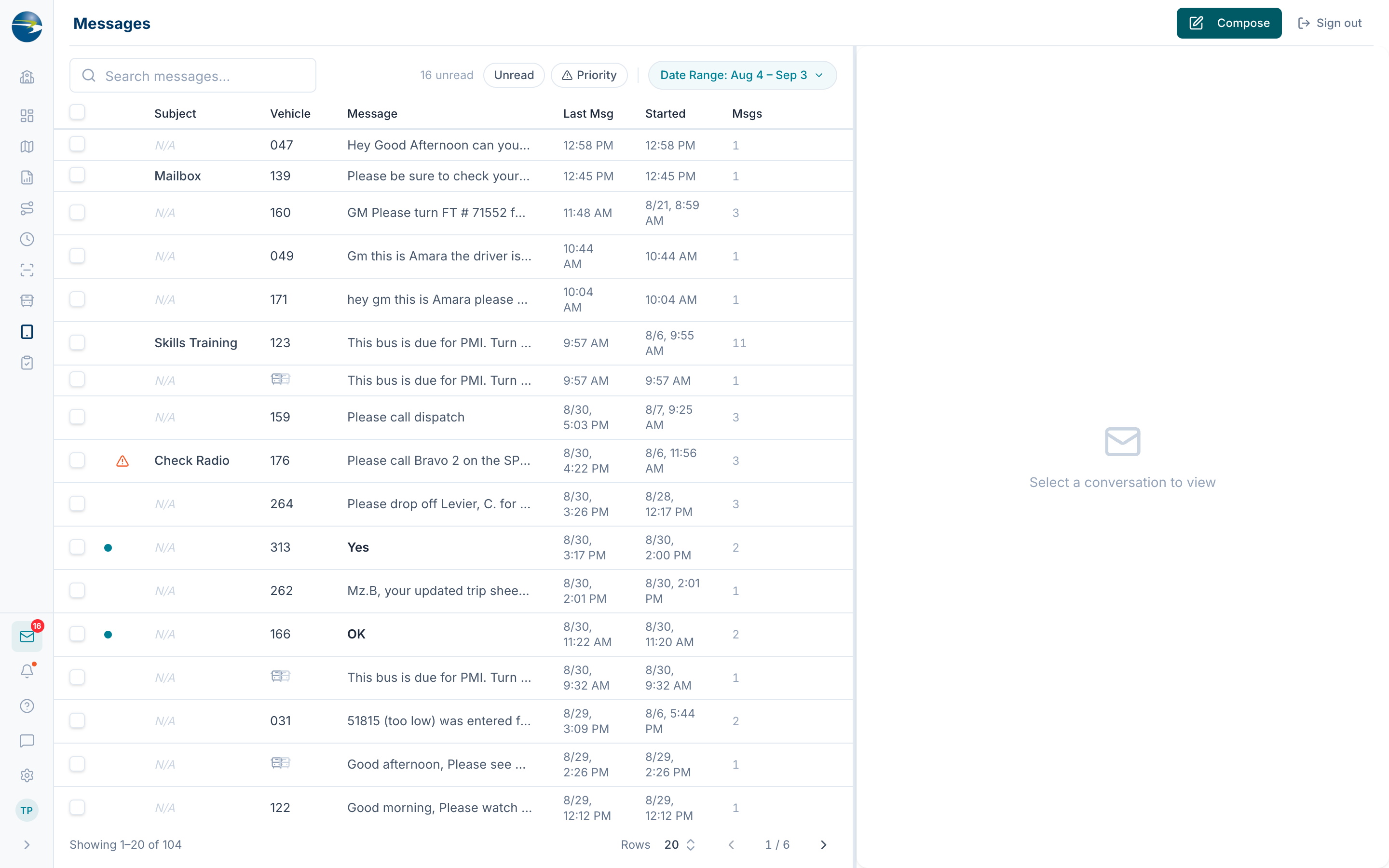 The Driver Messages inbox.
Finding a conversation
- Search across message text, subjects, vehicle numbers, sender names, and group names.
- Toggle Unread only, which also shows you the count.
- Toggle High priority only.
- Set a date range. It opens on the last month.
Filters stack, so you can combine them.
Send a message
- Select Compose.
- Choose the recipients: a single vehicle, a vehicle group, or the whole fleet.
- Add a subject if you want one.
- Write the message. The limit is 512 characters.
- Tick High priority if the driver should be alerted more prominently.
- Send.
Note
Messages send immediately. There's no schedule-for-later option here — that exists only for parent messaging in Here Comes the Bus.
Read a thread
Select a conversation to see the full exchange, oldest to newest.
- Your messages show who sent them and to whom, with a high-priority badge if flagged.
- Driver replies show the vehicle, the message, and the GPS location it was sent from — useful when a driver reports a problem but not where they are.
See who has read a message
Each message you send shows Sent, then Read with a timestamp once someone reads it.
Expand "X of N read" underneath to see the per-vehicle list, with All, Read, and Unread chips. That list is also the full recipient list, and everyone can see it, including view-only users.
Note
There's no Delivered status between Sent and Read, and a partly-delivered broadcast isn't broken out — you'll see the read count rather than a delivery count.
Mark as read or unread
Opening a conversation does not mark it read. You mark it explicitly, using Mark as Read or Mark as Unread in the thread header, or by ticking conversations and using the bar at the bottom.
Heads up
Read status is shared across your whole office, not per person. The inbox is district-level, so when one admin marks a conversation read, it's read for everyone. That's deliberate — it stops two people working the same message.
Delete a conversation
Use Delete in the thread header, or tick several conversations and delete them together. You'll be asked to confirm.
Heads up
Deleting removes the whole conversation, not a single message.
Good to know
- Times on the list and in threads are shown in your district's timezone, not the timezone of the computer you're using. A dispatcher working from another state sees the same times as everyone else.
- High priority flags the message for the driver. It doesn't change when it's sent.
- If you don't have edit access, you can read everything but not compose, mark, or delete.
- For the prewritten one-tap messages drivers can send you, see Canned Messages.