HCTB Accounts
HCTB Accounts is where you manage the parent and guardian accounts that use Here Comes the Bus. You can see who has signed up, which students are linked to each account, validate new accounts, and check what notifications a family has been sent.
Who uses this: office staff who field parent calls, and transportation administrators.
Where to find it
Go to HCTB → Accounts in the sidebar.
Note
This screen is only available on a district account. If you're signed in to an operator or consortium account, you'll be asked to switch to a district first.
What you'll see
A list of parent accounts, showing each one's name, email, whether the email has been validated, and the students linked to it.
- Only validated accounts appear by default. Turn on Show Not Validated to see accounts that haven't confirmed their email yet.
- No Student Only narrows the list to accounts with no students linked, which is a quick way to find sign-ups that never finished.
- Search by name, email, or ID.
- The Email Validated and Students filter chips let you slice the list further.
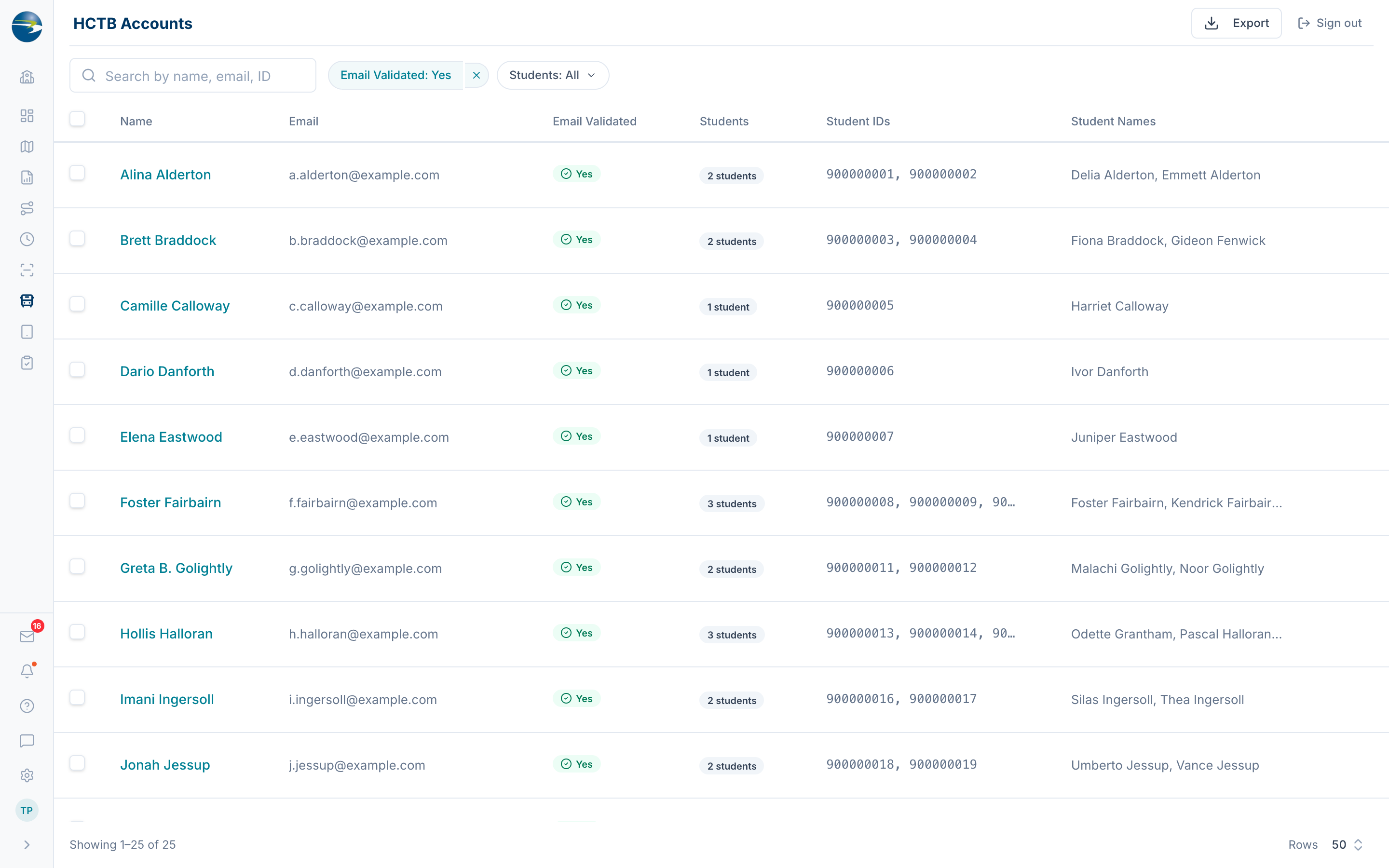 The HCTB Accounts list.
View an account's details
Click the parent's name to open their details on the right. You'll see three sections:
- Account Info — name, email, and when they last signed in.
- Contacts — each phone number or email on the account, with whether it's active or disabled.
- Students — every student linked to the account, with school, grade, and student ID.
 A parent account's details.
Validate an account
Parents normally validate their own email when they sign up. If they can't, you can do it for them.
- Find the account. You may need Show Not Validated turned on to see it.
- Use the row's ⋯ → Validate Account.
- Confirm.
The account becomes active immediately.
Note
Validate Account only appears on accounts that aren't already validated.
See what a family has been sent
Use the row's ⋯ → Notification History to see every alert delivered to that account, with the time, the student, the vehicle, the kind of notification, which contact it went to, and whether it was sent by email, text, or push.
This is the fastest way to answer "we never got an alert" — you can see whether it was sent, and where it went.
Sign in as a parent
Use the row's ⋯ → Launch Proxy to open the parent portal in a new tab, seeing exactly what that parent sees. Useful when a family reports something you can't reproduce.
Delete an account
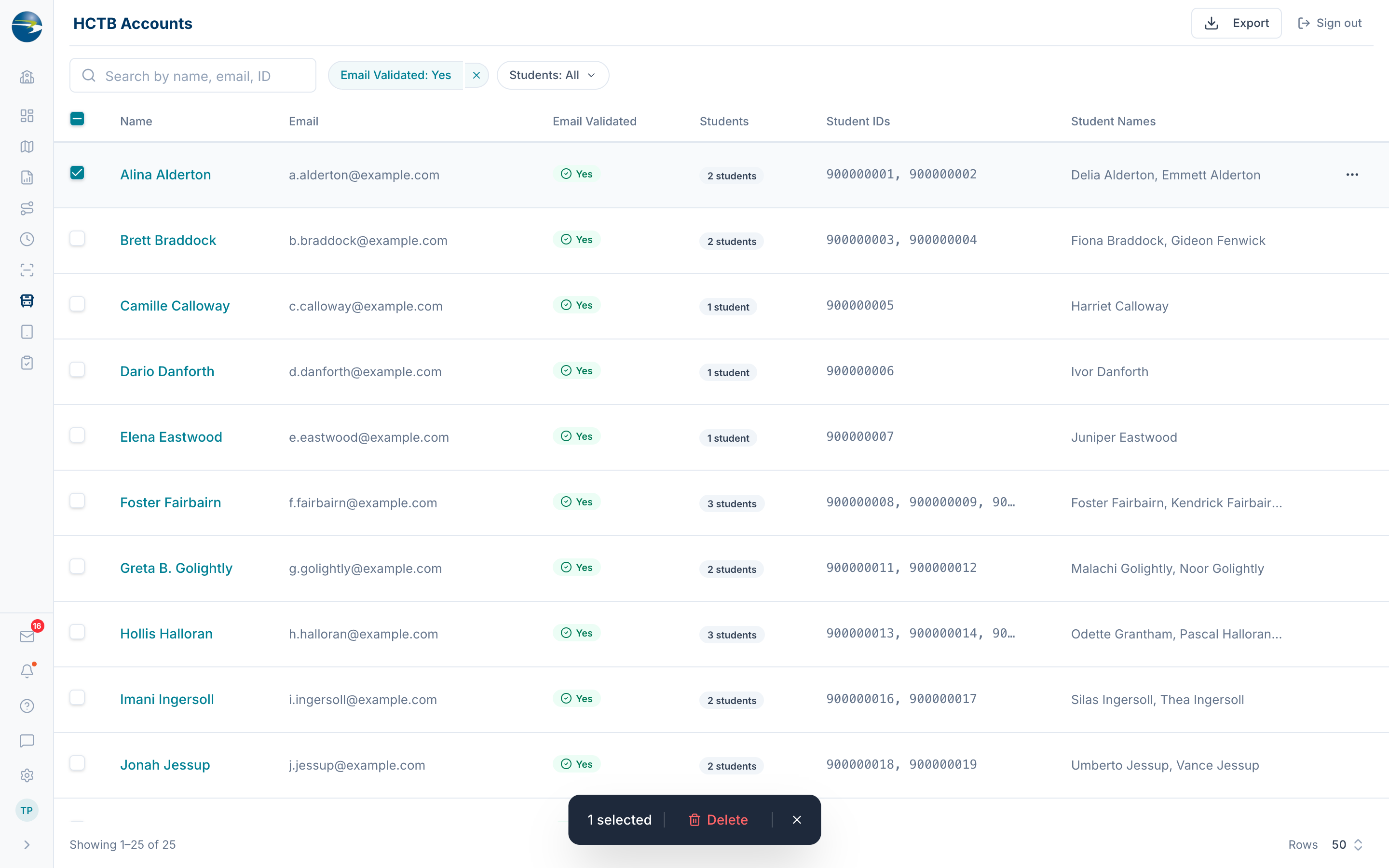
Use the row's ⋯ → Delete Account, or tick several accounts and delete them together. You'll be asked to confirm.
Heads up
Selecting rows, including Select All, applies to the current page only. If your list runs to several pages, deleting won't reach beyond the page you're on.
If some accounts in a bulk delete can't be removed, you'll be told which ones before anything else happens. The rest are deleted.
Export the list
Use Export to download the current list as a PDF or Excel file.
Good to know
- Leading zeros are trimmed from student IDs on screen, so
00123shows as123. - Validating an account doesn't send the parent an email — it just marks the address confirmed.
- If you don't have edit access, you'll see the list and details in view-only mode, without Validate, Delete, or Launch Proxy.