Seating Charts
Seating charts show where students sit on each bus. Drivers build the charts on their in-vehicle tablet, and this screen lets your office view those charts, spot buses that still need one, and download printable PDFs.
Who uses this: district office and transportation staff.
Where to find it
Go to Tablet → Seating Charts in the sidebar.
What you'll see
A list of your bus tiers, one row each, showing the tier name, route, school, vehicle, and whether a seating chart has been created. For tiers that have a chart, you'll also see who created it, when, and how many seats are filled.
- Use the search box to find a tier by name, route, or school.
- Use the filter chips (Period, School, Status) to narrow the list, for example to show only tiers still missing a chart.
- If any tiers don't have a chart yet, an amber banner appears at the top with a count. Click it to jump straight to those tiers.
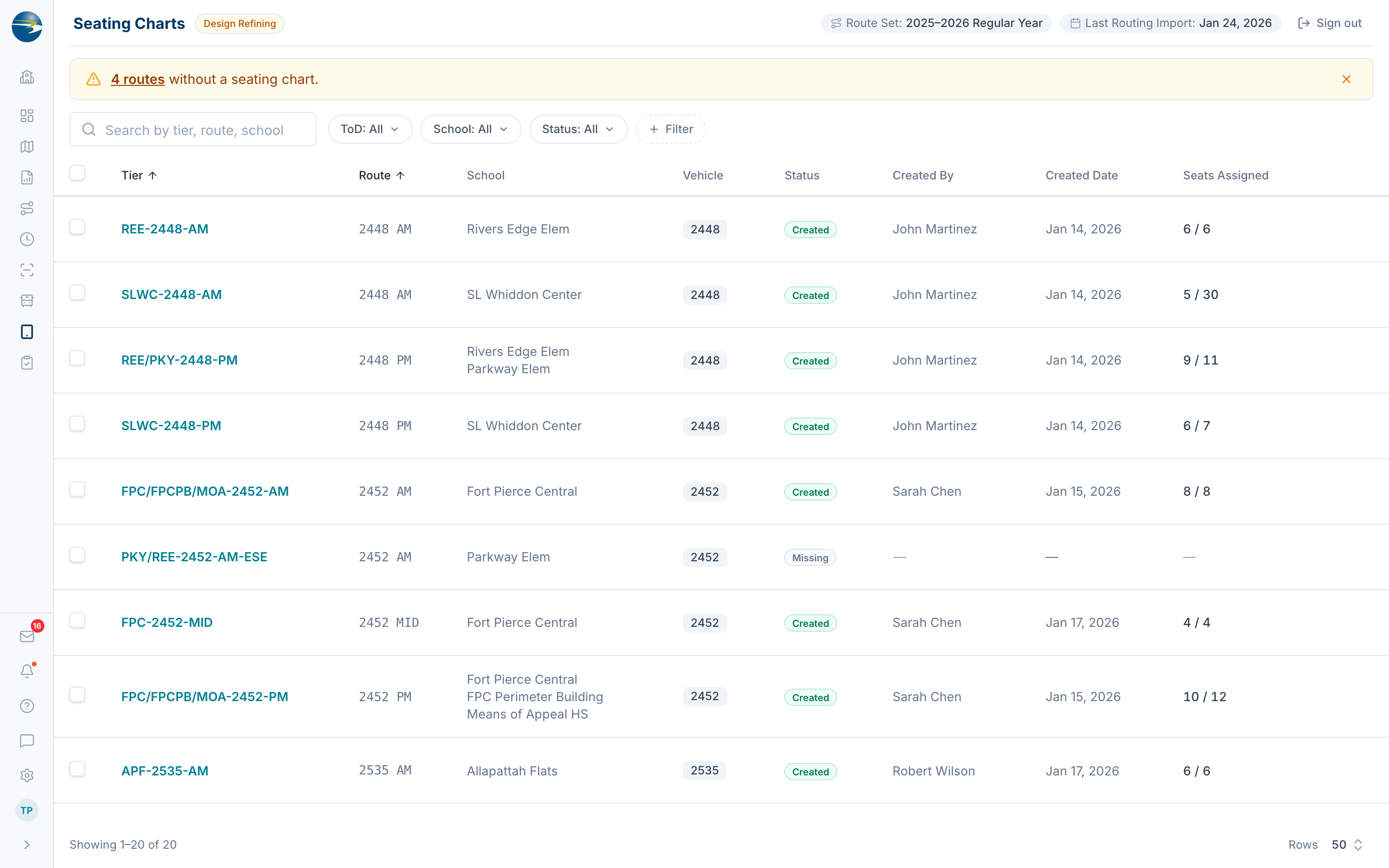 The Seating Charts screen.
Note
Seating charts are created and edited on the driver's tablet. This screen is view-only, so you can't build or change seat assignments here.
View a tier's seating chart
Click a tier name to open its detail panel on the right. When the tier has a chart, you'll see:
- A bus layout diagram showing the driver's seat at the front and every seat row, with each student's name and grade in their seat.
- Hover over a seat to see the student's full name, grade, and date of birth.
- A summary of the route, vehicle, seats filled, and who created the chart.
If the tier doesn't have a chart yet, the panel says so and reminds you that charts are created by drivers on the tablet.
Spot unassigned and no-longer-routed students
The detail panel helps you catch two situations:
- Students without a seat. If a student is on the route but hasn't been placed in a seat, a blue note shows the count, and each of those students is listed below the diagram with their name, grade, and date of birth.
- Students no longer on the route. If a student still has a seat but has been removed from the route in the latest import, their seat is highlighted with an amber edge. They may need to be reassigned by the driver.
Download a seating chart
You can print or share any chart as a PDF.
- One tier: open the tier and select Download Seating Chart at the bottom of the panel, or use the download action on its row in the list.
- Several tiers at once: check the boxes next to the tiers you want, then use Download Seating Chart(s) in the toolbar at the bottom of the screen.
Heads up
Seating chart PDFs contain student information. Handle them per FERPA and your district's privacy policy. Tiers without a chart are skipped in a bulk download.
Good to know
- Tiers appear here after your routing system's nightly import, so a brand-new route may not show up until the next day.
- The list is scoped to the district's active route set. Switching customer or route set changes which tiers you see.
- Seating charts are a district feature. If you're on an operator account, you'll see a message asking you to switch to a district account using the picker in the sidebar.
- If you don't have access to this feature, the Seating Charts item won't appear in your sidebar.