Route Sets
Route sets are named date ranges that group your routes into seasonal or operational periods, such as "Fall 2025" or "Summer Peak Routes." Most districts create sequential, non-overlapping route sets that line up with the academic calendar.
Who uses this: district office staff and administrators.
Where to find it
Go to Fleet Management → Route Sets in the sidebar.
What you'll see
A list of your route sets, showing each one's name, start date, end date, who last changed it, and when. The route set whose dates cover today is marked with a green Current badge.
- Use the search box to find a route set by name.
- Use the Modified By filter to see only route sets changed by a particular person.
- Select + Filters to narrow the list by start date, end date, or modified date.
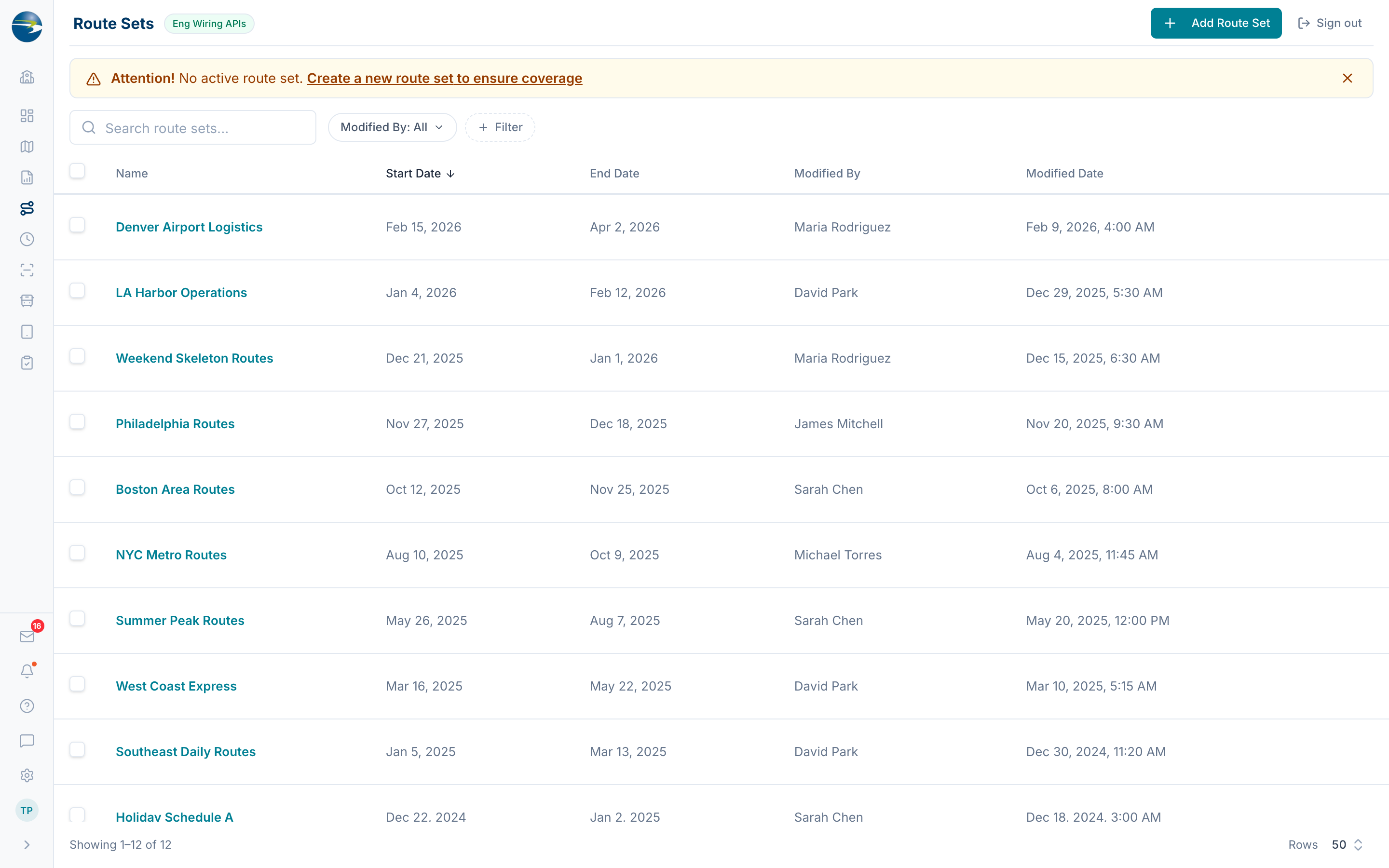 The Route Sets list.
Note
If your account is not a district account, route sets are managed from the district account instead, and this screen will show a note rather than a list.
Add a route set
- Select Add Route Set (top right).
- Enter a Name.
- Pick a Start Date and an End Date.
- Select Save.
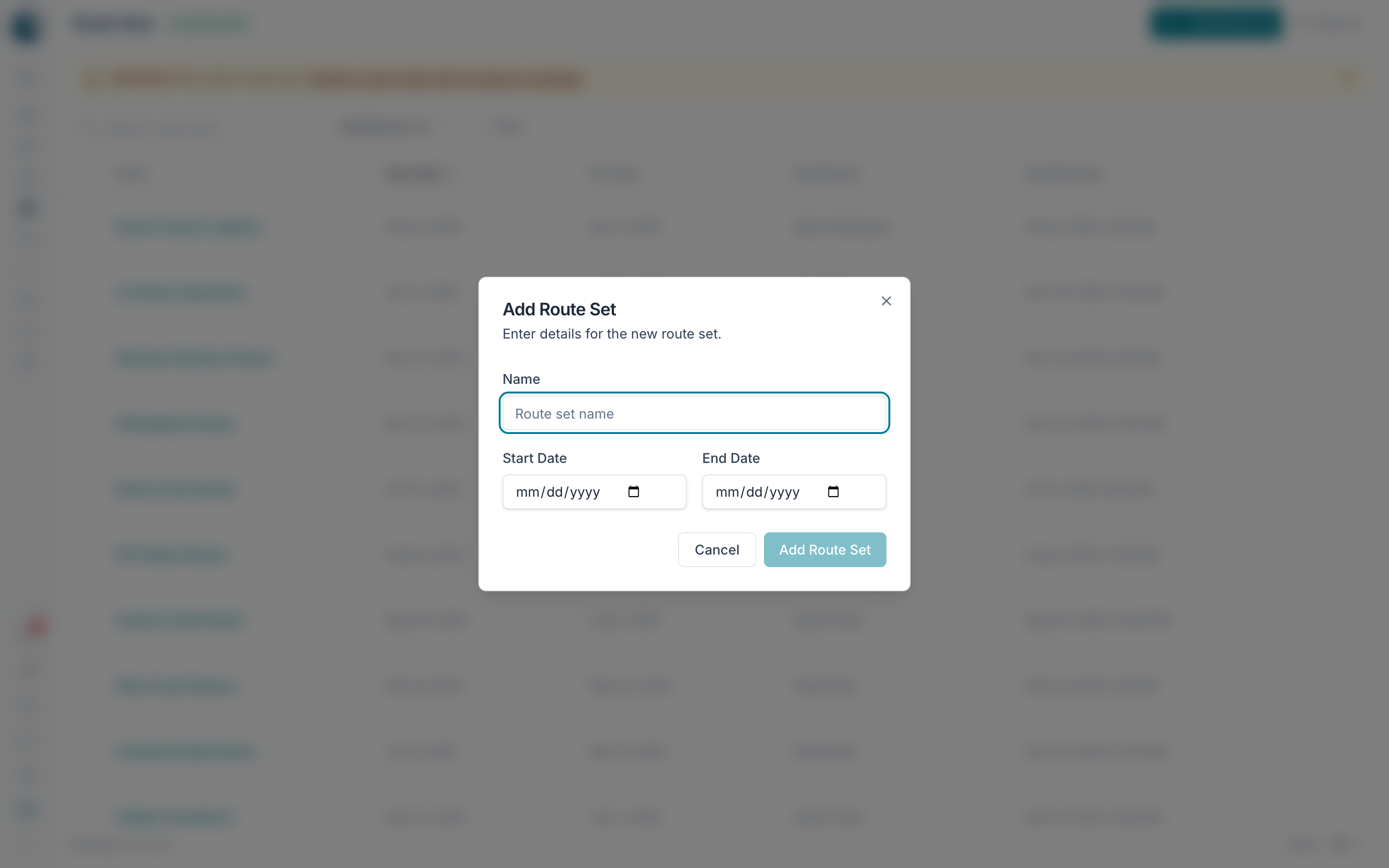 The Add Route Set window, with name, start date, and end date.
Heads up
Route sets can't overlap. If the dates you choose overlap another route set, you'll see a warning listing the conflicting route sets, and Save stays disabled until you fix the dates. The end date must also fall on or after the start date.
Edit a route set
Click the route set's name, or use the row's actions menu and choose Edit. Change the name or dates and select Save. The same overlap and date rules apply.
Delete a route set
Use the row's actions menu and choose Delete, or select several with the checkboxes and delete them together using the bar at the bottom of the screen.
Note
A route set that has a saved snapshot can't be deleted. Its Delete action is turned off and shows a "(has snapshot)" hint.
The expiry banner
An amber banner appears near the top of the screen when your route sets need attention:
- Your current route set expires within 30 days and no later route set is set up to follow it. The banner links you straight to Add Route Set.
- Your current route set expires within 30 days but a successor is already set up. The banner tells you which route set takes over and when.
- No route set covers today's date, so there is no active route set. The banner prompts you to create one.
You can dismiss the banner with the X, but it will come back on your next visit if the situation still applies.
Good to know
- A name and a valid date range are required. Names must be unique within your district.
- Gaps between route sets are fine (for example, no routes during winter break). Only overlaps are blocked.
- The list is sorted by start date, with the most current route set at the top.
- If you don't have edit access, you'll see the list in view-only mode (no Add, Edit, or Delete), but the expiry banner still shows.