Ride Requests
When a parent tells you through Here Comes the Bus that their child won't be riding, it arrives here as a ride request. This screen is where you review those requests, cancel the ride, and let the driver know.
Who uses this: dispatchers and office staff.
Where to find it
Go to HCTB → Ride Requests in the sidebar. You can also reach it from a parent's account on the HCTB Accounts screen.
What you'll see
A list of requests, newest change first. Each row shows the request ID, the student, the vehicle and route, the stop time, the school, the dates the request covers, its status, the parent's reason, and when it last changed.
The list opens filtered to Submitted — the requests that still need your attention. Clear or change the Status chip to see the rest.
Statuses you'll see:
| Status | Meaning |
|---|---|
| Submitted | Newly received; nobody has actioned it |
| Canceled by Parent | The parent withdrew the request themselves |
| Canceled by Admin | Someone in your office canceled the ride |
| Expired | The ride date passed without action |
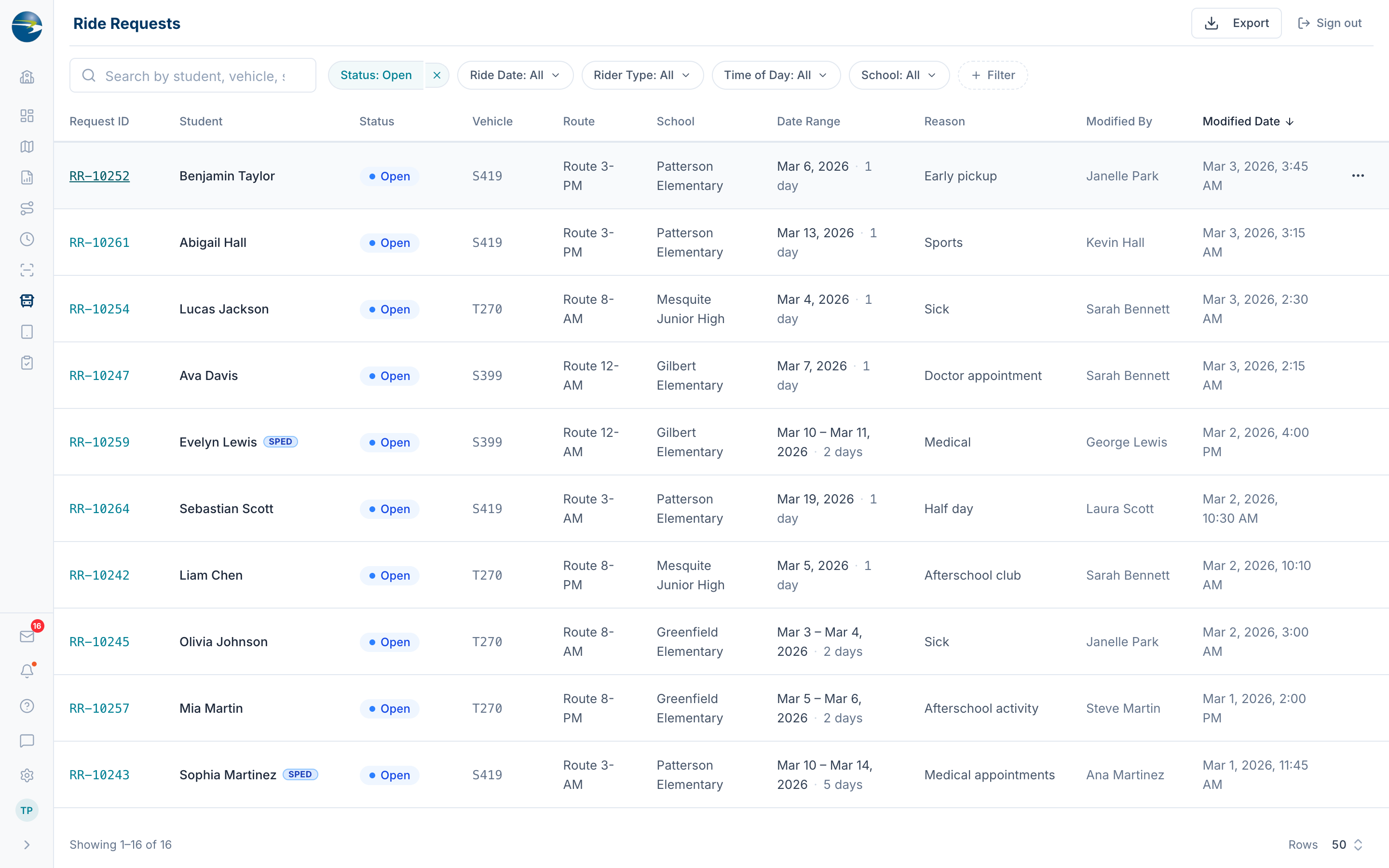 The Ride Requests list.
Finding a request
- Search by student, vehicle, or school.
- Filter by Status, Ride Date, Rider Type (Regular or SPED), Time of Day (AM, PM, MID, or Full Day), and School.
- Expand the filters for Modified Date if you want to see what changed recently.
Note
Ride Date defaults to today through six months out, and can't span more than a year. A wider range is rejected with a warning.
View a request
Click the request ID to open it on the right. You'll see the trip (vehicle, route, tier, school, dates, time of day, and how long it runs), the request itself (type, reason, who submitted it, who last changed it), and any notes the parent left.
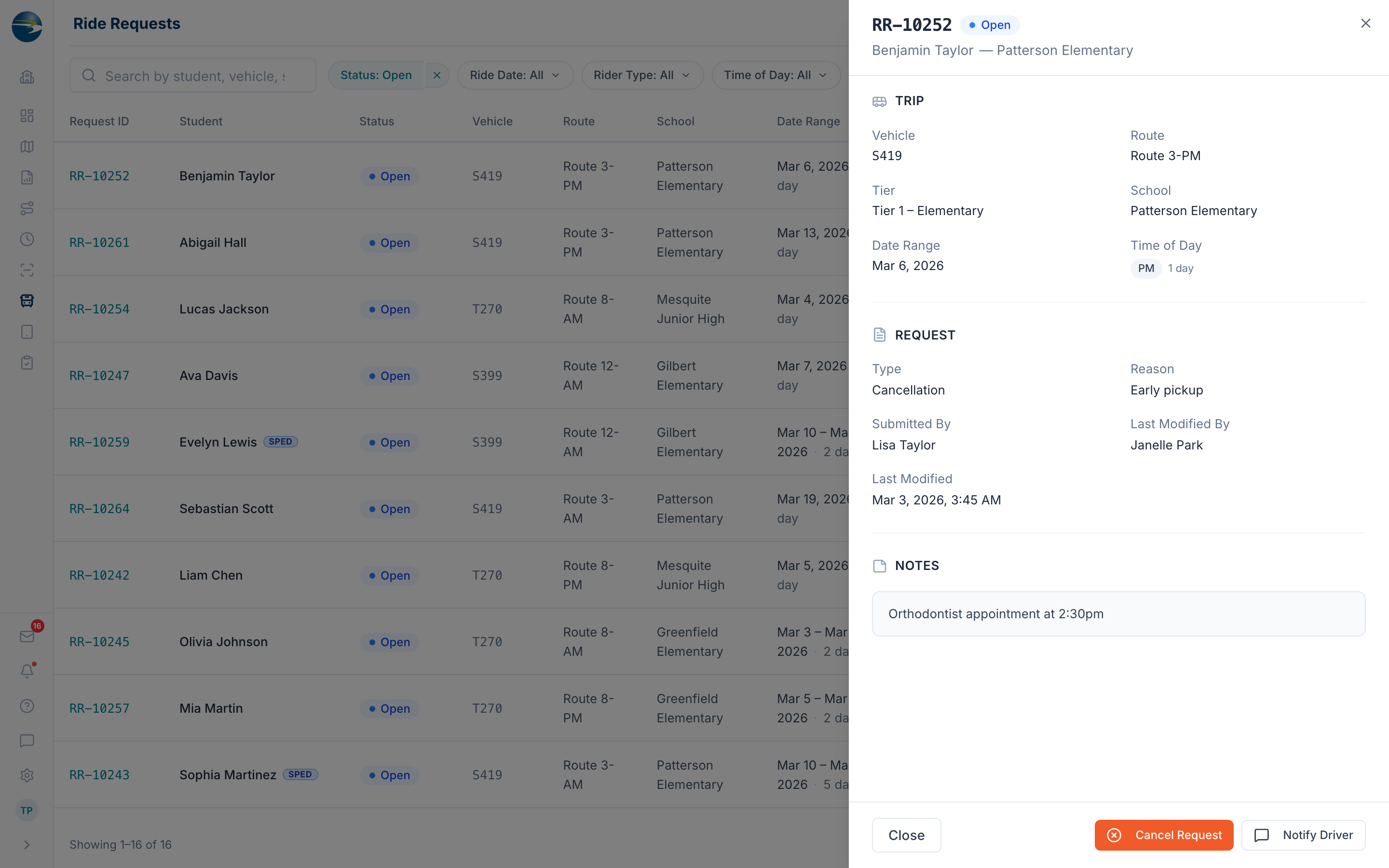 A ride request's details.
Cancel a ride
- Use the row's ⋯ → Cancel Request, or open the request and use Cancel Request at the bottom.
- Add a reason if you want to. It's optional.
- Confirm.
To cancel several at once, tick the rows and use Cancel in the bar at the bottom of the screen. Bulk cancel doesn't ask for a reason.
Heads up
You can only cancel a request that isn't already canceled and whose ride date is still in the future. Past-dated and already-canceled requests can't be canceled, and in a bulk cancel those rows are skipped without a message.
Any reason you enter is added to the request's notes as "Canceled with reason: …", so it stays with the record.
Tell the driver
Use the row's ⋯ → Notify Driver to open a message to the vehicle's tablet, already filled in with the vehicle, student, school, dates, time of day, reason, and notes. Review it and send.
Export the list
Use Export to download the current list, filters and all.
Good to know
- A full-day request covers several stops, so the Stop Time and Route columns can show more than one value, separated by commas.
- Whether a cancellation shows as by Parent or by Admin depends on who did it — there's nothing to set.
- Students with a SPED designation carry a badge next to their name.