Licenses
The Licenses screen shows every product license and feature your district is entitled to, and lets you turn them on or off for your account. Core licenses control platform features (routing, Time & Attendance, Here Comes the Bus, and more); Tablet licenses control features inside the driver tablet app.
Who uses this: district office staff and administrators who manage account settings.
Where to find it
Go to Settings → Account Settings → Licenses in the sidebar.
What you'll see
Two tabs, Core and Tablet, with a row count next to each. Each tab is a list of licenses showing the license name, whether it's enabled, its status, and who last changed it and when.
- Use the search box to find a license by name.
- The Status pill tells you each license's state at a glance:
- Active (green): the license is on and in effect.
- Inactive (gray): the license is off.
- Expired (amber): the license has a term that has ended.
- Gated (gray): the license depends on another license that isn't active yet.
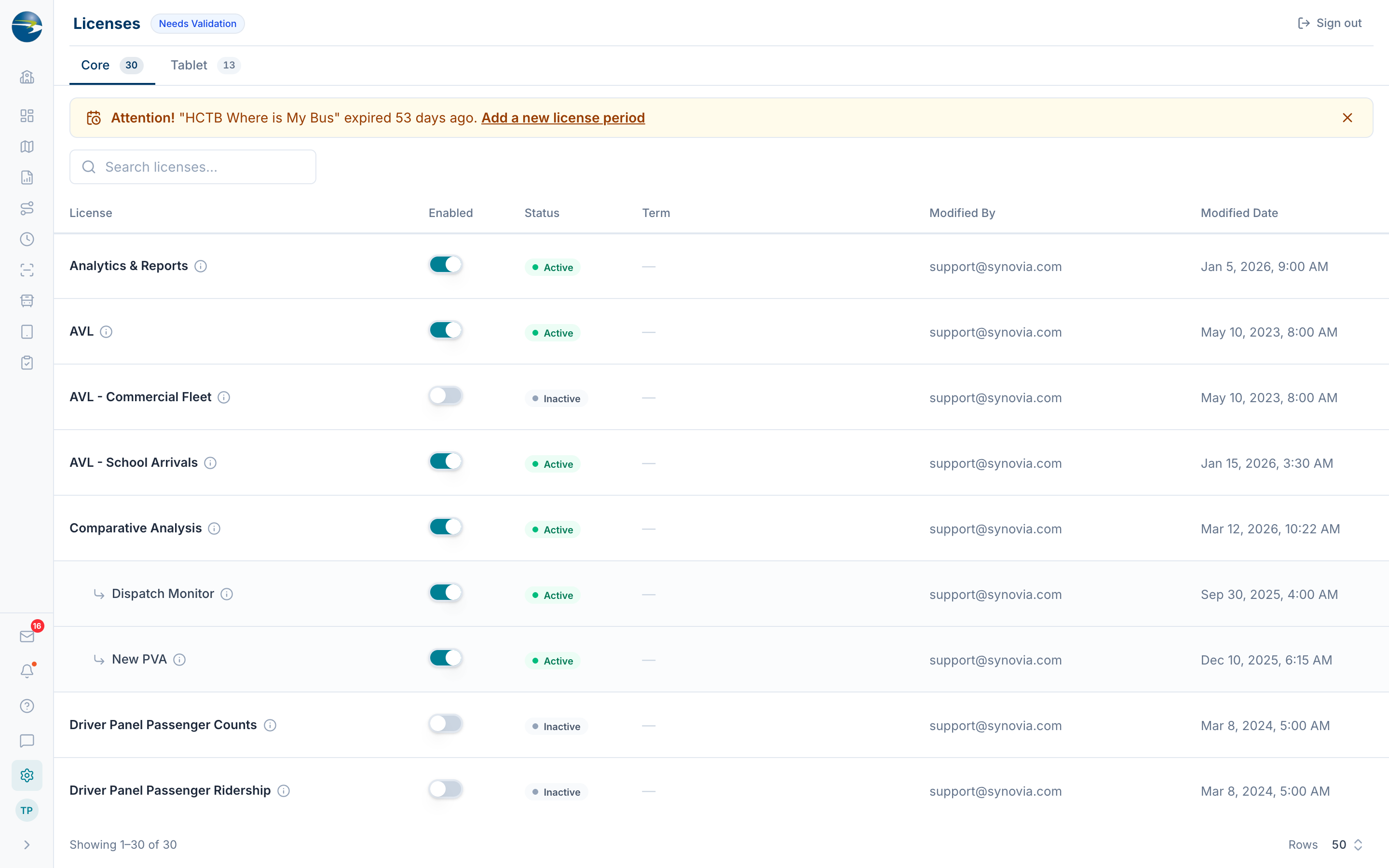 The Licenses screen.
On the Core tab, licenses are shown in a tree: features that belong under a parent license are indented beneath it. On the Tablet tab, each row also shows a Gated By badge, the Core license that must be active for that tablet feature to work.
Turn licenses on or off
- Find the license you want to change and flip its Enabled switch.
- Repeat for any other licenses. A bar appears at the bottom of the screen showing how many unsaved changes you have.
- Select Save Changes to apply them all at once, or Discard to undo everything you've changed.
Note
A couple of licenses are always on and can't be switched off from this screen. Their toggles appear on and locked, with a tooltip explaining why.
Heads up
Turning off a parent license also turns off the features that depend on it. If you're turning off Navigation and you have vehicles set up with navigation, you'll get a confirmation prompt before the change is saved.
Manage Here Comes the Bus license terms
Here Comes the Bus licenses run on contract periods with start and end dates. On the Core tab, an HCTB license's Term column shows its current period with an edit icon. Select the icon to open the periods dialog, where you can:
- See each period's type, start date, end date, and whether it's active.
- Add a new period (select Add period); the dates are pre-filled and you can adjust them.
- Edit or delete existing periods.
The period covering today is marked Current. Overlapping active periods are flagged and must be fixed before you can save. Child features under an HCTB license follow the parent's term automatically.
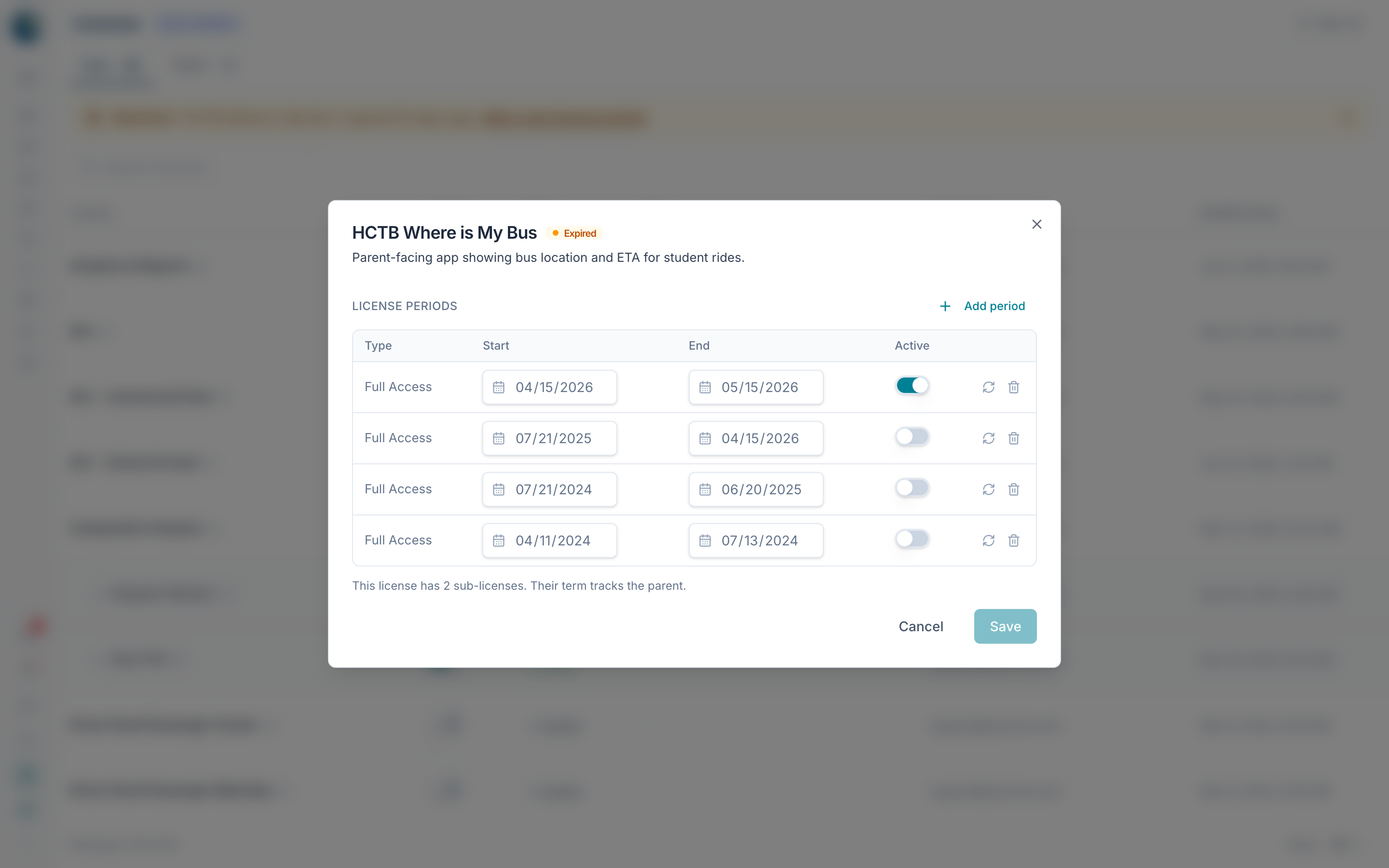 The periods dialog for a Here Comes the Bus license, showing its contract periods.
Note
When a Here Comes the Bus license is expired or close to expiring, an amber banner appears above the list with the number of days remaining and a link to add a new period.
Good to know
- Changes save together. Flipping switches only stages your edits; nothing takes effect until you select Save Changes.
- On the Tablet tab, tablet features can't be turned on until the MDT - Tablet license is active. If it isn't, a banner explains this and the toggles stay locked.
- If a tablet feature is Gated, enable its required Core license on the Core tab first.
- If a Here Comes the Bus parent license is on, at least one of its child features must also be on before you can save.
- If you don't have edit access, you'll see the lists in view-only mode with no toggles or save bar.